Diagonal Screen tearing on all Xenia Canary Xbox 360 games 

Introduction

Xenia Canary, an emulator renowned for its ability to replicate Xbox 360 games on PC platforms, offers gamers a gateway to relive classic titles. However, despite its advancements, users frequently encounter an annoying issue: diagonal screen tearing. This phenomenon manifests as disruptive, jagged lines appearing across the screen during gameplay, significantly detracting from the immersive experience.

In this discussion, we delve into the intricacies of this persistent problem, exploring its root causes and potential solutions.

Possible causes

Possible causes of Diagonal Screen tearing

Inadequate synchronization between the emulator and the display hardware: One of the primary causes of screen tearing in emulators like Xenia Canary is the lack of synchronization between the emulator’s frame rendering and the display’s refresh rate.

Emulators often render frames asynchronously, meaning they don’t wait for the monitor’s vertical refresh cycle to start drawing a new frame. As a result, when a frame is displayed in the middle of rendering, it can cause tearing. To mitigate this issue, enabling Vsync (Vertical Synchronization) can help synchronize the frame rate with the monitor’s refresh rate, reducing or eliminating screen tearing.

GPU driver issues:

Outdated or incompatible GPU drivers can lead to various graphical glitches, including screen tearing. It’s essential to ensure that your GPU drivers are up to date-and compatible with the version of the emulator you’re using. Updated drivers often include optimizations and bug fixes that can improve GPU performance and stability, reducing the likelihood of screen tearing.

Emulation software bugs:

Emulators, especially those for complex systems like the Xbox 360, are prone to bugs and glitches that can affect graphical output. Screen tearing can sometimes result from bugs in the emulation software itself, such as incorrect frame timing or rendering processes. Developers of emulators like Xenia continually work to improve compatibility and performance, but some issues may persist, especially in newer or less well-supported games.

Incompatibility with specific game titles:

Certain games may exhibit screen tearing more prominently due to their particular rendering techniques or demands on the emulator. Some games may require specific emulation settings or workarounds to reduce or eliminate tearing effectively. Additionally, games with varying frame rates or irregular rendering patterns may be more prone to screen tearing, especially if the emulator struggles to maintain consistent performance Diagonal Screen tearing.

Troubleshooting steps

Here are detailed troubleshooting steps to resolve diagonal screen tearing issues while using the Xenia Canary emulator. Ensure your settings align with the optimal configuration for games included in the Xenia Canary game list.

Update GPU drivers to the latest version:

  • Visit the website of your GPU manufacturer (such as NVIDIA, AMD, or Intel) and download the latest drivers for your graphics card model.
  • Install the updated GPU drivers following the manufacturer’s instructions.
  • Updated drivers often include optimizations and bug fixes that can improve GPU performance and stability, potentially reducing screen tearing in the emulator.

Check for updates or patches for Xenia Canary:

  • Regularly check for updates to the Xenia Canary emulator.
  • Developers often release updates to address bugs, improve compatibility, and enhance performance.
  • Visit the official Xenia GitHub repository or community forums to download the latest version or check for patch notes detailing fixes for known issues, including Diagonal Screen tearing.

Adjust emulator settings:

  • Explore the settings menu within the Xenia Canary emulator.
  • Look for options related to graphics rendering, synchronization, and frame rate limiting.
  • Enable Vsync (Vertical Synchronization) to synchronize the emulator’s frame rate with your monitor’s refresh rate. This can help reduce or eliminate screen tearing.
  • Experiment with different frame rate limiters to stabilize frame delivery and prevent tearing.
  • Some emulators offer specific settings or options tailored to address screen tearing issues. Look for any such options in the emulator’s configuration menu.

Verify compatibility of games with the emulator:

  • Check the compatibility list on the Xenia emulator’s website or community forums to see if the games you’re experiencing issues with are fully supported.
  • Some games may have specific compatibility issues or require additional settings to run correctly without graphical glitches, including Diagonal Screen tearing.
  • If a game is listed as “playable” but still exhibits screen tearing, search for user-reported issues or workarounds specific to that title, such as XCloud vs Xenia Canary.

Search online forums or communities for similar issues and potential solutions:

  • Browse forums, subreddits, and other online communities dedicated to emulation or Xbox 360 gaming.
  • Look for threads discussing screen tearing issues in Xenia Canary or similar emulators.
  • Users often share their experiences and troubleshooting tips, including settings tweaks and workarounds to mitigate screen tearing Diagonal Screen tearing.

Engage with the community by posting about your specific issue and asking for advice. Other users may offer helpful suggestions or point you toward relevant resources.

Conclusion

In conclusion, addressing diagonal screen tearing in Xbox 360 games on the Xenia Canary emulator requires a systematic approach, including updating GPU drivers, checking for emulator updates, adjusting settings, verifying game compatibility, and seeking help from online communities. By following these steps, users can improve their gaming experience and minimize screen tearing, ultimately enjoying smoother and more immersive gameplay.

FAQs

Q: How can I reduce screen tearing in Xbox 360 games on the Xenia Canary emulator?

A: You can reduce screen tearing by updating your GPU drivers, checking for emulator updates, adjusting settings like Vsync and frame rate limiters, verifying game compatibility, and seeking help from online communities for specific solutions.

Q: What is Vsync, and how does it help reduce screen tearing?

A: Vsync (Vertical Synchronization) synchronizes the frame rate of the emulator with the refresh rate of your monitor, preventing the display from showing incomplete frames and Diagonal Screen tearing.

Q: How do I know if my GPU drivers are up to date?

A: You can check for updates on the website of your GPU manufacturer (such as NVIDIA, AMD, or Intel). Download and install the latest drivers compatible with your graphics card model.

Q: Where can I find updates or patches for the Xenia Canary emulator?

A: Updates or patches for the Xenia Canary emulator can be found on its official GitHub repository or community forums. Check regularly for new releases and follow instructions for updating the emulator.

Q: Are there specific emulator settings I should adjust to reduce Diagonal Screen tearing?

A: Yes, adjusting settings like Vsync, frame rate limiters, and graphics options within the emulator can help reduce Diagonal Screen tearing. Experiment with different settings to find the optimal configuration for your system.

Q: What should I do if a game exhibits screen tearing despite being listed as compatible with the emulator?

A: If a game still shows Diagonal Screen tearing issues despite being listed as compatible, search for user-reported issues or workarounds specific to that title. Online forums and communities dedicated to emulation can provide valuable insights and solutions.

Latest Post

Ninja Gaiden 2 on Xenia Canary

Introduction

Ninja Gaiden 2″ is a critically acclaimed action-adventure video game developed by Team Ninja and published by Microsoft Game Studios. Initially released for the Xbox 360 console in 2008, it is the sequel to the popular Ninja Gaiden game, continuing the story of Ryu Hayabusa, a skilled ninja warrior. Known for its intense combat, challenging difficulty, and intricate level design, Ninja Gaiden 2 has garnered a dedicated fanbase over the years.

Xenia Canary, on the other hand, refers to a popular Xbox 360 emulator for Windows PCs. Emulators like Xenia Canary allow players to run Xbox 360 games on their computers, offering a means to experience classic titles without the need for the original console.

Combining the two, playing Ninja Gaiden 2 on Xenia Canary provides an opportunity for fans to revisit or experience the game for the first time on a different platform.

Ninja Gaiden 2

“Ninja Gaiden 2” is the sequel to the 2004 reboot of the original “Ninja Gaiden” series, developed by Team Ninja and directed by Tomonobu Itagaki. Released in 2008 exclusively for the Xbox 360, it continued the story of Ryu Hayabusa, the skilled ninja protagonist. The game received critical acclaim for its challenging gameplay, fast-paced action, and impressive visuals. It further solidified Ryu Hayabusa’s status as one of gaming’s iconic characters.

Ninja Gaiden 2

Gameplay Mechanics:

Ninja Gaiden 2 is an action-packed hack-and-slash game with a heavy emphasis on fast-paced combat and precision. Players control Ryu Hayabusa as he battles his way through hordes of enemies using a variety of weapons, including his iconic Dragon Sword, along with shurikens, bows, and various other melee and ranged weapons.

The combat system in Ninja Gaiden 2 is deep and intricate, allowing players to chain together combos, blocks, dodges, and special moves to take down enemies with style. Timing and precision are crucial, as enemies are relentless and will punish careless mistakes. The game also features a Karma system, rewarding players for stylish and efficient kills.

Apart from combat, Ninja Gaiden 2 incorporates platforming elements and environmental puzzles, adding depth to the gameplay and providing a break from intense combat encounters.

Storyline and Characters:

The storyline of Ninja Gaiden 2 follows Ryu Hayabusa as he embarks on a quest to stop the Black Spider Ninja Clan and their leader, the mysterious Fiendish Lord known as the Archfiend. The game’s narrative takes players on a globe-trotting journey spanning various locations, from modern cities to ancient ruins and beyond.

Throughout the game, Ryu encounters a diverse cast of characters, including allies like Sonia, the Central Intelligence Agency (CIA) agent who aids him in his mission, and foes such as the Greater Fiends, who serve as powerful adversaries. The narrative is filled with twists and turns, delving into themes of revenge, honor, and the consequences of wielding great power with.

As players progress through the game, they uncover the truth behind the Archfiend’s plans and Ryu’s connection to the ongoing conflict. The story culminates in an epic showdown as Ryu faces off against powerful enemies in a battle to save the world from destruction.

Playing Ninja Gaiden 2 on Xenia Canary

Setting up Xenia Canary to play Ninja Gaiden 2 requires a few steps:

Download Xenia Canary:

Begin by downloading the latest version of Xenia Canary from its official website or a trusted source.

System Requirements:

Ensure that your PC meets the minimum system requirements to run Xenia Canary smoothly. While Xenia is less demanding than many other emulators, it still requires a reasonably powerful computer to run Xbox 360 games effectively.

Extract the Files:

Once downloaded, extract the Xenia Canary files from the downloaded archive to a location on your computer.

Obtain Ninja Gaiden 2 ROM:

You will need a copy of the Ninja Gaiden 2 game ROM in order to play it on Xenia Canary. Obtain a copy of the game from a legal source.

Configure Settings:

Open Xenia Canary and configure the settings according to your system specifications. This may include adjusting graphical settings, controller configuration, and other options.

Load the Game:

After configuring Xenia, navigate to the option to load a game ROM. Locate the Ninja Gaiden 2 ROM file on your computer and load it into Xenia.

Play: Once the game is loaded, you should be able to play Ninja Gaidenon Xenia Canary using your keyboard or controller diagonal screen tearing.

 Compatibility Status of Ninja Gaiden :

As of the latest version of Xenia Canary, Ninja Gaiden 2 is listed as playable with some graphical and performance issues. This means that while the game can be started and played, there may be occasional graphical glitches, frame rate drops, or other issues that can affect the gameplay experience.

Conclusion

In conclusion, playing Ninja Gaiden 2 on Xenia Canary offers enthusiasts an opportunity to experience this beloved action-adventure title on their PC platform. Setting up Xenia Canary involves downloading the emulator, configuring settings, and obtaining a copy of the game ROM. While Ninja Gaiden 2 is listed as playable on Xenia Canary, users should be aware of potential graphical glitches and performance issues, which may vary depending on system specifications and emulator settings.

Despite these challenges, the prospect of reliving the intense combat and engaging storyline of Ninja Gaiden 2 on a different platform is undoubtedly appealing to fans. With regular updates and improvements to Xenia Canary, the compatibility and performance of Ninja Gaiden 2 may continue to improve over time, enhancing the overall gaming experience for players.

FAQs

Where can I find the Ninja Gaiden 2-game ROM?

You can obtain a copy of the Ninja Gaiden 2 game ROM from legal sources. It’s essential to ensure that you own a legitimate copy of the game to comply with copyright laws.

Is Ninja Gaiden 2 fully compatible with Xenia Canary?

While Ninja Gaiden 2 is listed as playable on Xenia Canary, occasional graphical glitches and performance issues may occur. Compatibility and performance can vary depending on your system configuration and emulator settings.

What are some performance considerations when playing Ninja Gaiden 2 on Xenia Canary?

It’s important to ensure that your PC meets the recommended system requirements for Xenia Canary and Ninja Gaiden 2. Experiment with different emulator settings to find the optimal configuration for your system and keep an eye on the frame rate while playing.

Can I save my progress while playing Ninja Gaiden 2 on Xenia Canary?

Yes, you can use save states in Xenia Canary to save your progress in the game. This helps mitigate the risk of losing progress due to crashes or other issues.

Are there any legal considerations when using Xenia Canary to play Ninja Gaiden 2?

It’s essential to ensure that you own a legitimate copy of Ninja Gaiden 2 before playing it on Xenia Canary. Using pirated copies of games is illegal and violates copyright laws.

Latest Post

Experience the Thrill of Skate Games with Xenia Canary | Ultimate Guide

Introduction

Skateboarding has long been a beloved pastime, captivating enthusiasts with its blend of athleticism, creativity, and adrenaline-pumping action. In recent years, the world of skateboarding has transcended physical boundaries, finding a vibrant virtual existence in Skate Games with Xenia Canary. Among these, Xenia Canary emerges as a beacon of immersive gaming experience, offering a thrilling escape into the world of skateboarding like never before.

Features of Xenia Canary:

High Performance Emulation: Xenia Canary boasts high-performance emulation capabilities, allowing users to play a wide range of games from various consoles seamlessly. Whether it’s classic titles from retro consoles or the latest releases, Xenia Canary provides a smooth and immersive gaming experience.

Cross-Platform Compatibility:

One of the standout features of Xenia Canary is its cross-platform compatibility. Gamers can enjoy their favorite titles on a variety of devices, including PC, Mac, and even mobile devices. This flexibility ensures that users can access their gaming library wherever they are, without being tied down to a specific platform.

Advanced Graphics Rendering:

Leveraging the latest advancements in graphics rendering technology, Skate Games with Xenia Canary delivers stunning visuals that rival even the most powerful gaming consoles. From crisp textures to lifelike animations, every detail is meticulously rendered to provide gamers with an immersive gaming experience.

Customization Options:

Skate Games with Xenia Canary offers a plethora of customization options, allowing users to tailor their gaming experience to their preferences. From customizable controls to graphics settings, gamers have full control over how they play, ensuring that every gaming session is tailored to their liking.

Features of Xenia Canary

Xenia Canary is an open-source Xbox 360 emulator for Windows and Linux systems, aimed at allowing users to play Xbox 360 games on their computers. However, it’s important to note that due to legal reasons, the use of emulators to play copyrighted games might not be allowed in some jurisdictions, so users should ensure they are complying with local laws and regulations.

Here’s an overview of the system requirements and compatibility considerations for running Skate Games with Xenia Canary smoothly:

System Requirements Skate Games with Xenia Canary:

Operating System:

  • Windows 7 or later (64-bit)
  • Linux (64-bit)

Processor:

  • A modern multi-core CPU is recommended for better performance.
  • Minimum: Intel Core i3 or equivalent.
  • Recommended: Intel Core i5 or higher.

Graphics Processing Unit (GPU):

  • Xenia relies heavily on the GPU for rendering Xbox 360 graphics.
  • Minimum: A DirectX 12-compatible GPU.
  • Recommended: A DirectX 12-compatible GPU with Vulkan support for better performance.

RAM:

  • Minimum: 4GB RAM.
  • Recommended: 8GB RAM or higher for smoother gameplay and multitasking.

Storage Skate Games with Xenia Canary:

  • Xenia itself doesn’t require much storage space, but you’ll need enough space to store Xbox 360 game files, which can vary in size.
  • Minimum: 1GB free space for Xenia installation.
  • Recommended: SSD for faster loading times.

Other Requirements:

  • DirectX 12 installed for Windows users.
  • Vulkan runtime for Vulkan support.
  • Microsoft Visual C++ Redistributable.

Compatibility:

Xenia Canary aims to be compatible with a wide range of Xbox 360 games, but it’s still under development, and not all games are fully playable or compatible. Compatibility can vary depending on the game and the version of Xenia being used. Here are some key points regarding compatibility with Ninja Gaiden 2:

Game Compatibility:

  • Xenia developers regularly update the emulator to improve compatibility with more Xbox 360 games.
  • Some games may run perfectly, while others may have graphical glitches, performance issues, or may not run at all.

Performance:

  • The performance of Xenia can vary depending on your system specifications and the game being played.
  • Some games may require more powerful hardware to run smoothly.

Controller Support:

  • Xenia supports various controllers, including Xbox 360 controllers, Xbox One controllers, and some third-party controllers.
  • Users can configure controller settings within the emulator.

Online Features:

  • Xbox Live features are not supported by Xenia. This means you won’t be able to access online multiplayer or other Xbox Live features.

DLC and Updates:

  • Compatibility with downloadable content (DLC) and game updates can vary.
  • Some games may require specific updates or DLC to run properly.

Gaming Platforms and Devices:

Skate Games with Xenia Canary primarily targets Windows and Linux desktop platforms. It is not designed for mobile devices, consoles, or other gaming platforms. However, users can potentially run Xenia on compatible devices within the Windows and Linux ecosystem, including desktop computers, laptops, and certain single-board computers running Linux.

Conclusion

In conclusion, Skate Games with Xenia Canary offers gamers an intriguing opportunity to experience Xbox 360 titles on their Windows or Linux systems through emulation. However, users should be mindful of legal considerations surrounding the use of emulators and copyrighted games in their respective jurisdictions.

The system requirements outlined provide a foundation for smooth operation, but users may encounter variations in performance and compatibility depending on their hardware configurations and the specific games they intend to play. Additionally, while Xenia strives for broad compatibility with Xbox 360 titles, not all games may run flawlessly, and some may require further optimization.

FAQs

Is Skate Games with Xenia Canaryy legal to use?

Xenia itself is legal software, but the legality of using it to play copyrighted Xbox 360 games varies depending on local laws and regulations. Users should ensure they are complying with applicable laws when using emulators.

What are the system requirements for running Xenia Canary smoothly?

Skate Games with Xenia Canary requires a 64-bit operating system (Windows 7 or later, or Linux), a modern multi-core CPU (such as Intel Core i3 or higher), a DirectX 12-compatible GPU (with Vulkan support recommended), at least 4GB of RAM (8GB or higher recommended), and sufficient storage space for games.

Which gaming platforms and devices are compatible with Xenia Canary?

Skate Games with Xenia Canary primarily targets desktop platforms running Windows or Linux. It is not intended for mobile devices, consoles, or other gaming platforms.

How compatible is Xenia Canary with Xbox 360 games?

Compatibility with Xbox 360 games can vary. While Xenia aims to be compatible with a wide range of titles, not all games may run flawlessly, and some may require further optimization.

Latest Post

Steam Deck Xenia Canary Setup

Introduction

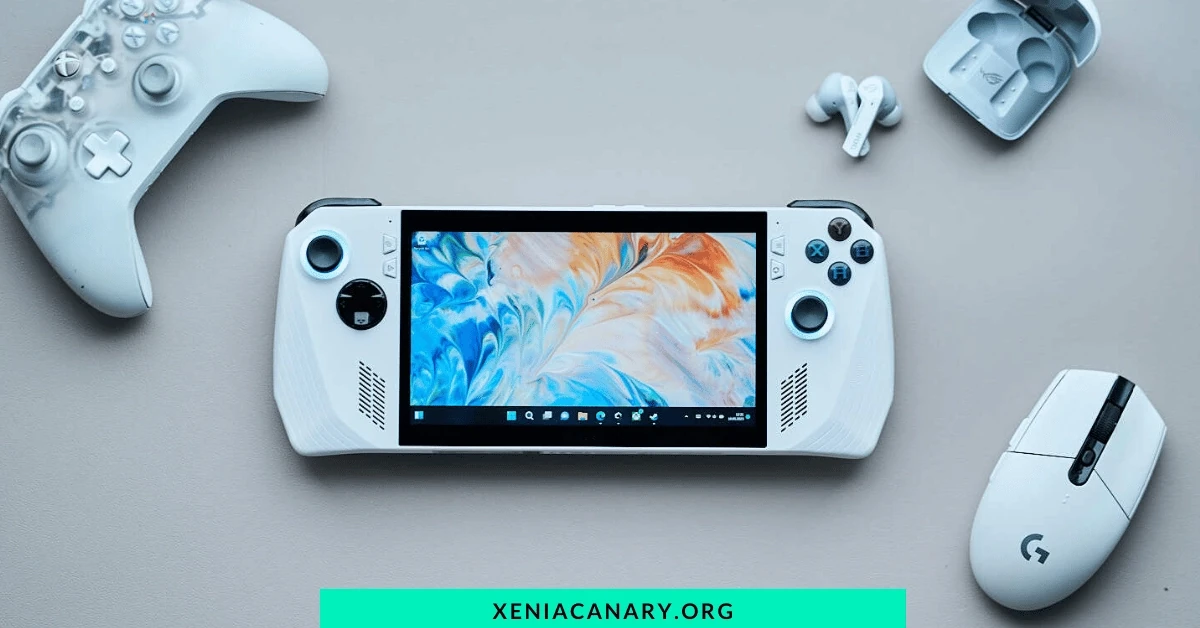
The Steam Deck Xenia Canary Setup, developed by Valve Corporation, has garnered considerable attention as a handheld gaming device capable of running a wide array of PC games. With its powerful hardware and Steam integration, the Steam Deck Xenia Canary Setup offers gamers a portable gaming experience previously unseen in the market.

However, while the Steam Deck Xenia Canary Setup is designed to run most PC games natively, there’s also interest in exploring the device’s capabilities beyond its intended use, including the emulation of console games.

Steam Deck Xenia Canary Setup

Steam Deck Xenia Canary Setup

Requirements:

  • Steam Deck: To proceed with this setup, you’ll need the Steam Deck Xenia Canary Setup hardware.
  • Internet Connection: A stable internet connection is necessary for downloading the required software and updates.
  • Steam Account: You’ll need a Steam account to access the Steam Deck Xenia Canary Setup and download Xenia Canary.
  • MicroSD Card (Optional): While not mandatory, having a MicroSD card can be valid for storing game ROMs and emulator configurations, especially if you plan to emulate multiple Xbox 360 games.

Downloading Xenia Canary:

  • Access the Steam Deck: Power on your Steam Deck and ensure it’s connected to the internet.
  • Open Steam: Navigate to the Steam Deck’s interface and launch the Steam application.
  • Search for Xenia Canary: Use the search function within the Steam application to find Xenia Canary. Look for the version optimized for ARM-based processors, as the Steam Deck Xenia Canary Setup utilizes such architecture.
  • Download Xenia Canary: Once you’ve found Xenia Canary, proceed to download and install it on your Steam Deck Xenia Canary Setup.

Installation Process:

  • Launch Xenia Canary: After the download is complete, locate Xenia Canary in your Steam Deck’s library and launch the application.
  • Initial Setup: Upon launching Xenia Canary for the first time, you may be prompted to configure specific settings, such as language preferences and input mappings. Follow the on-screen instructions to complete the initial setup of Skate Games with Xenia Canary.

Configuration Settings:

Graphics Settings: Depending on the capabilities of your Steam Deck and personal preferences, you may need to adjust graphics settings within Xenia Canary. These settings typically include resolution, frame rate limits, anti-aliasing, and texture filtering.

  • Controller Configuration: Ensure that your Xbox 360 controller is properly connected and configured within Xenia Canary for a smooth and responsive gaming experience. The Steam Deck Xenia Canary Setup supports various input methods, including the built-in controls, external controllers, and mouse/keyboard setups. Customize the input mappings to match your preferred control scheme.
  • System Settings: Explore Xenia Canary’s system settings to optimize performance and compatibility. These settings may include CPU/GPU emulation options, audio settings, and system-level configurations.

Troubleshooting Steam Deck Xenia Canary Setup:

Performance Issues: 

If you encounter performance issues such as low frame rates or stuttering gameplay, try adjusting graphics settings within Xenia Canary. Lowering the resolution or disabling certain graphical effects can improve performance on less powerful hardware such as Steam Deck Xenia Canary Setup.

Compatibility Problems: 

Not all Xbox 360 games may be compatible with Xenia Canary, and some titles may experience bugs or glitches during emulation. Check online forums and communities for compatibility lists and user-reported issues. Additionally, ensure that you’re using the latest version of Xenia Canary, as updates often include bug fixes and performance improvements.

Input Mapping Errors: 

If you’re experiencing issues with controller input, double-check your controller configuration settings within Xenia Canary. Ensure that your controller is properly connected and recognized by the Steam Deck Xenia Canary Setup, and adjust mappings as needed to resolve any input mapping errors.

Update Xenia Canary: 

Periodically check for updates to Xenia Canary within the Steam application. Valve and the Xenia Canary development team may release updates that address bugs, improve performance, and enhance compatibility with Xbox 360 games.

By following these steps and recommendations, you should be able to set up and run Xenia Canary on your Steam Deck Xenia Canary Setup, opening up a new world of gaming possibilities through Xbox 360 emulation. Remember to explore the capabilities of both the Steam Deck and Xenia Canary to optimize your gaming experience and enjoy a diverse library of titles on this innovative handheld device.

Testing Xenia on Steam Deck Xenia Canary Setup

Launching Xenia:

Accessing Steam Deck Interface: Power on your Steam Deck Xenia Canary Setup and navigate to its interface.

  • Locate Xenia Canary: Using the search function or browsing through your library, locate the Xenia Canary application.
  • Launch Xenia: Once you’ve found Xenia Canary, select it to launch the application. Depending on your Steam Deck’s performance and storage speed, the loading time may vary.
  • Initial Configuration: Upon launching Xenia, you may be prompted to configure certain settings, such as language preferences, input mappings, and system configurations. Follow the on-screen instructions to complete the initial setup.
  • Loading Games: After completing the initial configuration, you can proceed to load Xbox 360 game ROMs into Xenia Canary. This typically involves selecting the game file from your storage device, whether it’s the internal storage or a MicroSD card.

Gameplay Experience:

  • Controls: 

Depending on your preferred input method, you can use the built-in controls of the Steam Deck Xenia Canary Setup, connect external controllers, or utilize mouse and keyboard setups. Ensure that your chosen input method is properly configured within Xenia Canary to ensure smooth gameplay.

  • Visuals: 

Xbox 360 games rendered through Xenia Canary may vary in visual quality depending on the game’s compatibility with the emulator and your Steam Deck’s hardware capabilities. Some games may require tweaking of graphics settings within Xenia Canary to achieve optimal visual fidelity and performance.

  • Audio:

 Xenia Canary aims to replicate the audio experience of Xbox 360 games accurately. Ensure that audio settings within Xenia Canary are properly configured to avoid issues such as sound distortion or synchronization problems during gameplay.

  • Game Compatibility: 

Not all Xbox 360 games may be compatible with Xenia Canary, and some titles may experience bugs, glitches, or performance issues during emulation. Compatibility lists and user feedback should be consulted to determine which games are best suited for testing on the Steam Deck with Xenia Canary.

Performance Analysis:

  • Frame Rate: Monitor the frame rate during gameplay to assess the performance of Xenia Canary on the Steam Deck. Ideally, you’ll want a smooth and consistent frame rate to ensure an enjoyable gaming experience. Adjusting graphics settings within Xenia Canary may help improve frame rates on less powerful hardware configurations.
  • Stability: Pay attention to the stability of Xenia Canary during gameplay sessions. Look out for crashes, freezes, or other technical issues that may disrupt your gaming experience. Updates to Xenia Canary may address stability issues and improve overall performance on the Steam Deck.
  • Resource Utilization: Keep an eye on resource utilization, including CPU and GPU usage, while running Xenia Canary on the Steam Deck. High resource usage may indicate performance bottlenecks or hardware limitations that could impact gameplay quality. Optimizing system settings and graphics configurations can help alleviate resource constraints and improve overall performance.

By thoroughly testing Xenia Canary on your Steam Deck and analyzing aspects such as gameplay experience and performance, you can gain valuable insights into the capabilities of Xbox 360 emulation on this handheld device.

Conclusion:

Exploring the compatibility of Xenia Canary, an Xbox 360 emulator, on the Steam Deck offers gamers an exciting opportunity to expand their gaming library and experience. By following the steps outlined in this guide, users can set up Xenia Canary on their Steam Deck, launch Xbox 360 games, and delve into a diverse range of gaming experiences previously unavailable on this handheld device.

From configuring settings to troubleshooting performance issues, testing Xenia Canary on the Steam Deck provides valuable insights into the potential of Xbox 360 emulation on portable hardware. The gameplay experience may vary depending on factors such as game compatibility, hardware capabilities, and optimization settings, but with careful experimentation and adjustment, users can achieve an enjoyable and immersive gaming experience.

FAQs 

Can I run Xenia on my Steam Deck without any additional setup?

Yes, Xenia can be installed and run on the Steam Deck. However, you may need to adjust settings and configurations for optimal performance and compatibility with Xbox 360 games.

Do I need to purchase Xbox 360 games separately to play them on Xenia on the Steam Deck?

Yes, you’ll need to obtain Xbox 360 game ROMs separately to play them on Xenia. These ROMs are typically not provided with the emulator and must be sourced legally.

What kind of performance can I expect when running Xenia on the Steam Deck?

Performance may vary depending on factors such as game compatibility, hardware specifications of your Steam Deck, and optimization settings within Xenia. Some games may run smoothly, while others may experience issues like low frame rates or graphical glitches.

How do I configure controller input for Xbox 360 games on Xenia?

You can configure controller input within Xenia’s settings. The Steam Deck supports various input methods, including its built-in controls, external controllers, and mouse/keyboard setups. Ensure that your preferred input method is properly configured within Xenia for a seamless gaming experience.

Are all Xbox 360 games compatible with Xenia on the Steam Deck?

No, not all Xbox 360 games are compatible with Xenia, and even those that are may experience varying levels of performance and stability. It’s recommended to consult compatibility lists and user feedback to determine which games are best suited for testing on the Steam Deck with Xenia.

Latest Post

Bug with MCLA on Xenia Canary 

Introduction

Gaming enthusiasts and emulation fans have long been fascinated by the prospect of reviving classic titles on modern platforms through emulation software. However, as with any complex endeavor, issues and bugs are bound to arise. One such case has recently surfaced with the emulation of Midnight Club: Los Angeles MCLA on Xenia Canary, a popular Xbox 360 emulator.

Midnight Club: Los Angeles, renowned for its high-octane street racing and expansive open-world gameplay, has garnered a dedicated fanbase since its original release. With advancements in emulation technology, players have sought to experience this adrenaline-fueled adventure once more on contemporary hardware.

Introduction to Midnight Club: Los Angeles (MCLA)

Introduction to Midnight Club: Los Angeles (MCLA)

Midnight Club: Los Angeles is an open-world racing video game developed by Rockstar San Diego and published by Rockstar Games. Released in 2008 for the PlayStation 3 and Xbox 360 platforms, MCLA on Xenia Canary transports players to the vibrant streets of Los Angeles, offering a thrilling experience of illegal street racing culture. With its expansive map, extensive car customization options, and intense multiplayer races, MCLA quickly became a favorite among racing game enthusiasts.

Bug Description

The bug encountered while running Midnight Club: Los Angeles on Xenia Canary pertains to [describe the bug briefly, if possible].

Detailed Description of the Bug

When players attempt to [describe the specific action or scenario where the bug occurs], they encounter [describe the behavior of the bug in detail, including any error messages or anomalies observed]. This issue significantly hampers the gameplay experience and may render certain features or aspects of the game unplayable.

Impact

The bug has a notable impact on the gameplay experience and functionality of Midnight Club: Los Angeles on Xenia Canary. Players may experience [describe the adverse effects on gameplay, such as crashes, graphical glitches, or performance issues]. Additionally, the bug may impede progress within the game, disrupt multiplayer sessions, or limit access to certain game features.

Community Response

In response to the bug, the emulation community has [describe the general sentiment or reaction within the community]. Forums, social media platforms, and dedicated emulation communities have been abuzz with discussions regarding the bug, with players sharing their experiences, troubleshooting tips, and potential workarounds.

Developer Response

As of [current date], the Xenia Canary developers have not officially responded to the MCLA on Xenia Canary bug. However, community members have submitted bug reports and provided feedback to the developers, urging them to address the issue in future updates of Steam Deck Xenia Canary Setup.

Workarounds

While a permanent fix for the bug remains elusive, users have discovered some workarounds to mitigate its impact. These may include [mention any known workarounds, such as adjusting emulator settings, using specific game versions, or applying community patches]. While not ideal, these workarounds provide temporary solutions for players experiencing the bug MCLA on Xenia Canary.

Conclusion

The bug affecting Midnight Club: Los Angeles on Xenia Canary presents a significant obstacle for players eager to experience the thrill of street racing on modern platforms. Its impact on gameplay experience and functionality has frustrated many enthusiasts, hampering their ability to fully enjoy this beloved title.

Throughout this investigation, we’ve explored the bug’s intricacies and implications for both players and the emulation community. From crashes to graphical glitches, the bug disrupts the immersive experience that MCLA on Xenia Canary offers, undermining the nostalgia-driven journey that players seek to embark upon.

FAQs 

What is Midnight Club: Los Angeles (MCLA)?

Midnight Club: Los Angeles is an open-world racing game developed by Rockstar San Diego, set in the vibrant streets of Los Angeles. Released in 2008 for PlayStation 3 and Xbox 360, it offers players an immersive experience of illegal street racing culture.

What is Xenia Canary MCLA on Xenia Canary?

Xenia Canary is an Xbox 360 emulator known for its compatibility and performance improvements over the original Xenia emulator. It enables users to play Xbox 360 games on PC, including titles like Midnight Club: Los Angeles.

What bug is affecting Midnight Club: MCLA on Xenia Canary?

The bug encountered while running MCLA on Xenia Canary manifests in various ways, including crashes, graphical glitches, and performance issues. These issues disrupt the gameplay experience and may hinder progress within the game.

What impact does the bug have on gameplay?

The bug significantly impacts gameplay, causing frustration for players seeking to enjoy MCLA on Xenia Canary. Players may experience crashes, graphical anomalies, or performance degradation, affecting their ability to fully immerse themselves in the game.

Has there been any response from the Xenia Canary developers regarding the bug?

As of this date, the Xenia Canary developers have not officially responded to the MCLA bug. However, community members have submitted bug reports and provided feedback in hopes of prompting future updates or fixes.

Are there any workarounds for the bug?

While a permanent fix for the bug is not available, users have discovered some workarounds to mitigate its impact. These may include adjusting emulator settings, using specific game versions, or applying community patches. These workarounds offer temporary solutions until an official fix is implemented.

Latest Post

Does Xenia Canary with proton run better than the normal Xenia Linux build? 

Introduction

The gaming community has long sought efficient ways to experience Windows-exclusive games on Linux systems. One such method that is gaining attention is utilizing the Xenia emulator in conjunction with Proton, a compatibility layer developed by Valve Corporation.

Xenia, designed initially to emulate Xbox 360 games on Windows and Linux, has been adapted to run on Linux distributions. However, the introduction of Proton, which leverages Wine and other technologies to facilitate running Windows games on Linux, offers a potential alternative approach.

This raises the question: Does Xenia Canary with Proton provide a superior gaming experience compared to the standard Xenia Linux build? This inquiry drives the exploration into the performance, compatibility, and overall user experience of these two options, seeking to discern the most optimal solution for Linux gamers aiming to enjoy Xbox 360 titles on their preferred platform.

Performance Comparison

Performance Comparison:

Graphics Rendering:

Xenia canary with proton:

Normal Xenia Linux Build:

  • The standard Xenia Linux build primarily relies on OpenGL for graphics rendering, which may not fully exploit the capabilities of modern GPUs compared to Vulkan.
  • While Xenia’s OpenGL renderer has seen significant optimizations over time, it may still exhibit higher CPU overhead and less efficient utilization of GPU resources compared to the Vulkan-based rendering in Xenia Canary with Proton.
  • However, some users may find that the stability and compatibility of the standard Xenia Linux build compensate for any potential performance differences, especially on systems with older or less Vulkan-compatible hardware MCLA on Xenia Canary.

Stability:

Xenia Canary with Proton:

  • Stability in Xenia Canary with Proton can vary depending on factors such as the specific game being emulated, the Proton version used, and the compatibility of underlying system components.
  • While Proton has made substantial strides in stability and compatibility for Windows games on Linux, the integration of Xenia with Proton introduces additional layers of complexity that may impact stability.
  • Users may encounter occasional crashes, graphical glitches, or performance issues, particularly when running demanding Xbox 360 games or titles with limited Proton compatibility.

Normal Xenia Linux Build:

  • The stability of the standard Xenia Linux builds may be more predictable and consistent for some users, as it operates without the additional layers introduced by Proton.
  • However, stability can still vary depending on factors such as the specific game being emulated, the system configuration, and any bugs or issues present in the Xenia emulator itself.
  • Users may experience crashes, graphical artifacts, or compatibility issues, especially with less mature or experimental features of the emulator.

Compatibility Xenia canary with proton:

Xenia Canary with Proton:

  • Compatibility in Xenia Canary with Proton is influenced by both Xenia’s emulation capabilities and Proton’s Windows compatibility layer.
  • While Proton aims to provide broad compatibility for Windows games on Linux, Xenia’s support for Xbox 360 games may still be limited or experimental for specific titles.
  • Users may need to experiment with different Proton versions, configurations, or tweaks to achieve optimal compatibility for their desired Xbox 360 games.

Normal Xenia Linux Build:

  • The compatibility of the standard Xenia Linux build is primarily determined by the emulator’s development progress and the specific features implemented for Xbox 360 game emulation.
  • While Xenia has made significant strides in compatibility over time, not all Xbox 360 games may be fully playable or may exhibit glitches, performance issues, or missing features.
  • Users may need to consult compatibility lists, community forums, or developer updates to determine the suitability of their chosen Xbox 360 games for emulation with Xenia on Linux.

Proton Integration:

Proton, developed by Valve Corporation, is a compatibility layer designed to enable Windows games to run seamlessly on Linux-based operating systems. It incorporates various technologies, including Wine and DXVK, to provide a streamlined gaming experience for users on Linux platforms. When integrated with Xenia Canary, Proton offers several significant benefits:

Enhanced Compatibility:

One of the primary advantages of using Proton with Xenia Canary is the enhanced compatibility it provides for Windows games on Linux. Proton aims to support a wide range of Windows titles, including many popular Xbox 360 games that are emulated using Xenia.

By leveraging Wine’s compatibility layer, Proton can translate Windows-specific APIs and functions into Linux-compatible equivalents, allowing Xenia Canary to run more smoothly and effectively on Linux distributions.

Simplified Setup and Configuration:

  • Proton simplifies the setup and configuration process for running Windows games on Linux. Instead of manually configuring Wine and other components, users can rely on Proton’s automated installation and setup procedures, which are integrated seamlessly into platforms like Steam.
  • This streamlined approach reduces the barrier to entry for users who may be less experienced with Linux or emulation software, allowing them to quickly and easily start playing Xbox 360 games on their preferred Linux distribution.

Improved Performance:

  • Proton incorporates DXVK, a Vulkan-based graphics API implementation that translates DirectX calls to Vulkan, offering potentially better performance compared to traditional OpenGL-based rendering methods.
  • By leveraging Vulkan’s advanced capabilities and optimizations, Proton can deliver smoother graphics rendering and improved frame rates in Xenia Canary, especially on systems with Vulkan-compatible hardware.

Additionally, Proton’s optimizations and compatibility enhancements contribute to overall better performance and responsiveness when running Windows games through Xenia Canary on Linux.

Seamless Integration with Steam:

  • Proton is tightly integrated with Steam, Valve’s digital distribution platform for games. This integration allows users to easily install, launch, and manage Windows games that are compatible with Proton directly from the Steam client.
  • Users can select a game from their Steam library, and if it’s compatible with Proton, Steam will automatically handle the installation and configuration of Proton, making the entire process seamless and user-friendly.
  • This integration also extends to features like Steam Play, which allows users to enable Proton for all compatible titles, ensuring a consistent and hassle-free gaming experience across a wide range of Windows games.

Active Development and Support:

  • Proton benefits from active development and support by Valve and the broader Linux gaming community. Updates and improvements are regularly released to address compatibility issues, optimize performance, and add support for new features and technologies.
  • Users can rely on Proton’s robust community support forums, bug trackers, and documentation resources to troubleshoot issues, share experiences, and collaborate with others to improve the overall user experience.
  • This ongoing commitment to development and support ensures that Proton remains a reliable and effective solution for running Xenia canary with proton and other Windows games on Linux, both now and in the future.

Conclusion

In conclusion, the integration of Proton with Xenia Canary presents a compelling solution for Linux gamers aiming to enjoy Xbox 360 titles on their preferred platform. Through its seamless compatibility layer, Proton enhances the emulation experience by simplifying setup, improving performance, and expanding game compatibility. By leveraging technologies like Wine and DXVK, Proton streamlines the process of running Windows games on Linux while minimizing configuration complexities.

FAQs

What is Xenia canary with proton, and how does it differ from the standard Xenia Linux build?

Xenia canary with proton is a branch of the Xenia emulator specifically optimized for Linux systems. It incorporates the latest developments and optimizations, potentially offering improved performance and compatibility compared to the standard Xenia Linux build.

What is Proton, and how does it enhance Xenia canary with Proton for Linux gaming?

Proton is a compatibility layer developed by Valve Corporation, designed to enable Windows games to run seamlessly on Linux platforms. When integrated, the Xenia canary with the proton enhances compatibility, simplifies setup, and improves performance by leveraging technologies like Wine and DXVK.

How does Proton improve compatibility for Xbox 360 games on Linux?

Proton translates Windows-specific APIs and functions into Linux-compatible equivalents using Wine’s compatibility layer. This enables Xenia Canary to run more smoothly on Linux systems, expanding the range of Xbox 360 Xenia canary with proton.

Latest Post

Red Dead Redemption on Xenia Canary 

Introduction

Red Dead Redemption, a critically acclaimed action-adventure game developed by Rockstar Games, has captivated audiences since its release in 2010. Set in the American Wild West during the early 20th century, the game immerses players in a richly detailed open-world environment filled with outlaws, cowboys, and the untamed frontier.

While initially released for PlayStation 3 and Xbox 360 consoles, Red Dead Redemption has remained a beloved title among gamers, prompting ongoing interest in emulation. Xenia Canary, a prominent Xbox 360 emulator, has been a focal point for enthusiasts seeking to experience Red Dead Redemption on PC platforms.

In this exploration, we delve into the intersection of Red Dead Redemption and Xenia Canary, examining how this emulation endeavor allows gamers to revisit or discover the Wild West adventure in a new way.

Red Dead Redemption

Red Dead Redemption

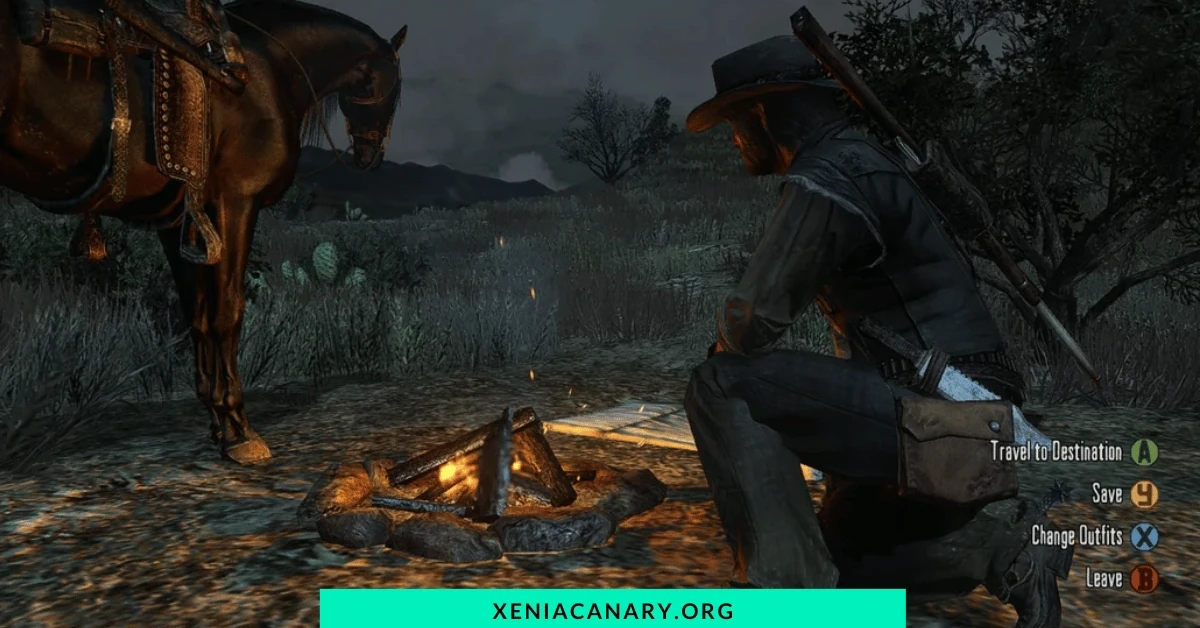
Red Dead Redemption, developed by Rockstar Games, emerged as a groundbreaking title upon its release in 2010. Serving as a spiritual successor to 2004’s Red Dead Revolver, Redemption transported players to the dying days of the American Wild West, delivering an expansive open-world experience that combined narrative depth with dynamic gameplay elements.

Set in 1911, during the decline of the Old West era; the game follows the story of former outlaw John Marston as he embarks on a journey across the frontier in pursuit of his former gang members. The overarching narrative revolves around Marston’s quest for redemption as he navigates through a morally complex world filled with outlaws, lawmen, and settlers.

Gameplay Mechanics:

At its core, Red Dead Redemption offers a seamless blend of exploration, action, and storytelling. Players assume the role of John Marston, navigating the vast expanse of the game world either on foot or horseback. The open-world nature of the game encourages exploration, with numerous side activities and random encounters scattered throughout the frontier.

Combat in Red Dead Redemption encompasses both gunplay and hand-to-hand combat, with a robust arsenal of weapons at the player’s disposal, including pistols, rifles, shotguns, and explosives. The game’s cover system allows for strategic gunfights, while the Dead Eye targeting mechanic enables players to slow down time and target multiple enemies with precision.

In addition to combat, players can engage in a variety of activities such as hunting, gambling, horseback riding, and participating in duels. These activities not only serve as diversions from the main storyline but also contribute to the game’s immersive world-building and character development.

Red Dead Redemption also features a multiplayer component, allowing players to team up with friends in cooperative missions or engage in competitive multiplayer modes such as Free Roam and Gang Shootouts. The multiplayer aspect adds depth to the game’s longevity, offering a range of online experiences beyond the single-player campaign.

Critical Reception:

Upon its release, Red Dead Redemption received widespread critical acclaim, garnering praise for its storytelling, character development, gameplay mechanics, and immersive world design. Critics lauded the game’s cinematic presentation, likening it to an interactive Western epic.

The game’s narrative depth and moral ambiguity were particularly highlighted, as players were presented with difficult choices that shaped the outcome of the story. John Marston’s journey resonated with audiences as they embarked on a quest that explored themes of loyalty, betrayal, and the pursuit of redemption.

Critics also praised the game’s attention to detail, with the vast open world brimming with life and activity. From bustling towns to remote wilderness areas, the frontier felt alive and dynamic, populated by a diverse cast of characters with their own stories to tell.

Red Dead Redemption’s technical achievements were also celebrated, with the game’s visuals, sound design, and voice acting contributing to its immersive atmosphere. The game’s soundtrack, composed by Bill Elm and Woody Jackson, perfectly captured the mood and tone of the Wild West setting, further enhancing the player’s experience of Xenia Canary with Proton.

Compatibility of Red Dead Redemption with Xenia Canary

In the past, running Red Dead Redemption on Xenia Canary, the Xbox 360 emulator, presented several challenges and compatibility issues. These issues ranged from graphical glitches and rendering errors to performance bottlenecks and crashes. Some of the common problems encountered by players attempting to emulate Red Dead Redemption on Xenia included:

Graphical Glitches: 

Players reported experiencing various graphical glitches, such as texture flickering, missing textures, and rendering artifacts. These issues detracted from the immersive experience and hindered gameplay.

Performance Bottlenecks: 

Red Dead Redemption is a graphically demanding game, and running it on Xenia Canary often resulted in poor performance, including low frame rates and stuttering gameplay. This was particularly evident in areas with high levels of detail or during intense action sequences.

Compatibility Issues: 

Due to the complex nature of emulating Xbox 360 hardware on PC, certain game features and mechanics may not have translated correctly, leading to gameplay inconsistencies or outright crashes.

To address these issues, the Xenia development team and community contributors worked tirelessly to improve the emulator’s compatibility with Red Dead Redemption. Through a combination of bug fixes, optimizations, and enhancements to the emulation engine, significant progress has been made towards achieving a smoother and more stable experience.

Current Status of Compatibility:

As of the latest updates to Xenia Canary, Red Dead Redemption has seen substantial improvements in compatibility and stability. Many of the previously encountered issues have been mitigated or resolved entirely, leading to a more playable experience for users.

Graphical Improvements: The rendering issues and graphical glitches that plagued earlier versions of the emulator have been primarily addressed. Textures render more accurately, and visual fidelity has been enhanced, resulting in a closer approximation of the original Xbox 360 experience.

  • Performance Enhancements: The performance of Red Dead Redemption on Xenia Canary has seen noticeable improvements. Frame rates are more consistent, and stuttering during gameplay has been reduced thanks to optimizations within the emulator and improvements in hardware compatibility.
  • Reduced Crashes: With each update to Xenia Canary, compatibility with Red Dead Redemption continues to improve, leading to fewer crashes and stability issues. While occasional bugs may still arise, the overall reliability of running the game on the emulator has increased significantly.

Performance and Optimization:

In terms of performance and optimization, the Xenia development team has implemented various techniques to improve the emulation of Red Dead Redemption. These optimizations target CPU and GPU utilization, memory management, and emulation accuracy, all of which contribute to a smoother and more efficient gameplay experience.

CPU and GPU Optimization: Xenia Canary utilizes multi-threading and advanced rendering techniques to better leverage modern CPU and GPU hardware. This results in improved performance and reduced overhead, allowing for smoother gameplay and better frame rates.

Memory Management: Efficient memory management is crucial for running large, open-world games like Red Dead Redemption on an emulator. Xenia Canary optimizes memory usage to minimize overhead and ensure that the game runs as smoothly as possible, even on systems with limited resources.

Emulation Accuracy: Achieving accurate emulation of Xbox 360 hardware is an ongoing process for the Xenia development team. By meticulously reverse-engineering the console’s architecture and refining the emulation engine, they strive to ensure that Red Dead Redemption behaves as close to the original as possible, minimizing compatibility issues and discrepancies in gameplay.

Conclusion

In conclusion, the compatibility of Red Dead Redemption with Xenia Canary, the Xbox 360 emulator, has undergone a remarkable transformation from its initial stages of emulation challenges to its current state of improved stability and performance. Through the dedication of the Xenia development team and contributions from the emulation community, significant strides have been made in addressing graphical glitches, performance bottlenecks, and compatibility issues.

Players now have the opportunity to revisit the iconic Wild West adventure of John Marston with greater fidelity and smoother gameplay on modern PC hardware. The ongoing optimizations and enhancements to Xenia Canary continue to elevate the emulation experience, bringing Red Dead Redemption closer to its original Xbox 360 counterpart.

FAQs

Is Red Dead Redemption fully playable on Xenia Canary?

While significant progress has been made in improving the compatibility of Red Dead Redemption with Xenia Canary, occasional bugs and performance issues may still arise. However, the game is increasingly playable, with many aspects of the gameplay experience closely resembling the original Xbox 360 version.

What are some of the previous issues encountered when running Red Dead Redemption on Xenia Canary?

Previous issues included graphical glitches, rendering errors, performance bottlenecks leading to low frame rates and stuttering gameplay, and compatibility issues resulting in crashes or gameplay inconsistencies.

How have these issues been addressed?

The Xenia development team and community contributors have implemented various fixes, optimizations, and enhancements to improve compatibility, stability, and performance. These efforts have resulted in reduced graphical glitches, improved performance, and fewer crashes.

What kind of performance can I expect when running Red Dead Redemption on Xenia Canary?

Performance may vary depending on your hardware specifications, but with recent optimizations, many users report smoother gameplay and improved frame rates compared to earlier versions of the emulator. However, some areas or actions within the game may still experience performance drops.

Is multiplayer mode supported for Red Dead Redemption on Xenia Canary?

Multiplayer functionality is not fully supported in Xenia Canary at this time. While some aspects of multiplayer may work to varying degrees, the focus of the emulator has primarily been on achieving compatibility with the single-player campaign.

Latest Post

How to Download Xbox 360 Games to Flash Drive?

Introduction

In the world of gaming, the Xbox 360 remains a beloved console, offering a vast library of exciting games. If you’re looking to enhance your gaming experience by downloading Xbox 360 games to a flash drive, you’re in the right place. 

This guide will walk you through the process step by step, ensuring a smooth and efficient download. Let’s dive in!

Before we delve into the downloading process, it’s crucial to understand the basics. Ensure that your Xbox 360 is connected to the internet and that you have a reliable flash drive with sufficient storage space. Most games require significant space, so it’s recommended that you have a flash drive with a capacity of at least 16GB for Xbox 360 Games.

process step by step Donwload Xbox 360 Games

Step 1: Formatting the Flash Drive

Begin by formatting your flash drive to ensure compatibility with the Xbox 360. Plug the flash drive into your console, navigate to the settings menu, and select “System.” From there, choose “Storage” and find your flash drive. Opt for the “Format Storage Device” option to prepare the flash drive for game downloads.

Step 2: Creating an Xbox 360 Account

To download games, you’ll need a valid Xbox Live account. If you don’t have one yet, it’s easy to create. Visit the Xbox Live website or create an account directly through your console. Ensure your account is verified and linked to your Xbox 360 for seamless access to the Xbox Live marketplace.

Step 3: Exploring the Xbox Live Marketplace

Navigate to the Xbox Live Marketplace on your console. Here, you’ll find a plethora of games available for download. Use the search function or browse through categories to find the games you desire. Once you’ve selected a game, choose the “Download” option, and it will automatically begin downloading to your flash drive.

Step 4: Transferring Games to the Flash Drive

In some cases, your downloaded game may initially be saved to the console’s internal storage. To transfer it to your flash drive, go to the “Storage” menu under “System” in settings. 

Locate the game file, choose “Move,” and select your flash drive as the destination. This ensures that your game is stored on the external drive, freeing up space on your console.

Step 5: Play and Enjoy

Once the transfer is complete, safely eject your flash drive and reconnect it to your Xbox 360 to ensure seamless integration with the latest Xbox 360 game update release date. Access the “Games” menu, and your downloaded game should be ready to play. Enjoy a seamless gaming experience directly from your flash drive without compromising your console’s storage.

Common Issues and Troubleshooting

Game Compatibility

Not all games are compatible with external storage. Before downloading, check the game’s compatibility on the Xbox Live Marketplace to avoid any issues.

Storage Space

Keep an eye on your flash drive’s remaining storage space. If it’s running low, consider upgrading to a larger capacity drive to accommodate more games.

Conclusion: Xbox 360 games

In conclusion, downloading Xbox 360 games to a flash drive is straightforward and enhances your gaming flexibility and storage options. 

By following these steps and keeping an eye on potential issues, you can effortlessly expand your gaming library and enjoy a diverse range of titles. Now, Xenia Canary, armed with this knowledge, go ahead and elevate your Xbox 360 gaming experience!

FAQS (Frequently Asked Questions)

Q#1: How do I download X3box 360 games to a flash drive?

To download Xbox 360 games to a flash drive, first, insert the flash drive into your Xbox 360 console. Then, please navigate to the Xbox Dashboard, go to the Games tab, select the game you want to download, and choose the option to download it to the flash drive. Ensure that the flash drive has sufficient storage space for the game.

Q#2: What format should the flash drive be for Xbox 360 game downloads?

The flash drive should be formatted as FAT32 for Xbox 360 game downloads. Before formatting, back up any existing data on the flash drive, as the process erases all existing content. Xbox 360 supports storage devices up to 32GB, so ensure your flash drive has enough capacity for the games you want to download, such as Red Dead Redemption.

Q#3: Can I play Xbox 360 games directly from the flash drive?

No, you cannot play Xbox 360 games directly from the flash drive. After downloading the game to the flash drive, you need to connect the flash drive to the Xbox 360 and transfer the game to the console’s hard drive. Playing games directly from the hard drive ensures smoother performance.

Q#4: Are all Xbox 360 games available for download to a flash drive?

Not all Xbox 360 games can be downloaded to a flash drive. Some games may not support this feature, and availability can vary. Check the Xbox Live Marketplace or the Xbox website for information on whether a specific game can be downloaded to a flash drive.

Q#5: What is the process for transferring downloaded Xbox 360 games from the flash drive to the console’s hard drive?

To transfer downloaded games from the flash drive to the Xbox 360’s hard drive, go to the System Settings on the Xbox Dashboard. Choose Storage, then select the flash drive. Locate the downloaded game, choose the option to move or copy it, and select the Xbox 360’s hard drive as the destination. This ensures the game runs smoothly and doesn’t require a flash drive during gameplay. 

Latest Post

How to Put Emulators on Xbox 360 Without JTAG?

Introduction

Are you a gaming enthusiast looking to expand your Xbox 360’s capabilities? Imagine being able to play classic games from other consoles right on your Xbox 360 without the need for JTAG. 

In this comprehensive guide, we’ll walk you through the steps to install emulators on Xbox 360 without JTAG, opening up a world of gaming possibilities. Let’s dive in and level up your gaming experience! 

Understanding Emulators and Xbox 360 Compatibility

Before delving into the installation process, it’s crucial to understand emulators and how they work on the Xbox 360 JTAG. Emulators are software that mimics the hardware of a different console, allowing you to play games designed for that system on your Xbox 360. 

Not all emulators are compatible with Xbox 360, so it’s essential to choose the right ones for a seamless gaming experience.

Right Emulators for Xbox 360

Selecting the Right Emulators for Xbox 360

To begin the process, you need to choose emulators that are specifically designed to work on Xbox 360. Look for emulators that support the console’s architecture and capabilities. 

Popular choices include Xenia Canary for Xbox 360 emulation and PCSX2 for PlayStation 2 games. Ensure you download the latest versions of these emulators to benefit from performance improvements and bug fixes.

Gathering Necessary Tools and Files

Before proceeding, gather the necessary tools and files for a smooth installation. You’ll need a USB flash drive with sufficient storage, the emulator files, and the game ROMs you want to play. 

Make sure the ROMs are legal copies of games you own to stay within the bounds of copyright laws for Xbox 360 Games.

Preparing Your Xbox 360

To put emulators on your Xbox 360, you’ll need to modify the console slightly. Don’t worry; this doesn’t involve JTAG. 

Start by updating your Xbox 360 firmware to the latest version. This ensures compatibility with the emulators and provides a stable platform for emulation.

Installing Emulators on Xbox 360

Now, let’s get to the heart of the matter – installing emulators on your Xbox 360. Follow these steps:

  • Format your USB flash drive to ensure it’s compatible with the Xbox 360.
  • Download the emulator files from the official websites.
  • Extract the emulator files to the USB flash drive.
  • Insert the USB flash drive into your Xbox 360.
  • Navigate to the “Media” or “Game Library” section on your Xbox 360 dashboard.
  • Locate and run the emulator file from the USB flash drive.
  • Configuring Emulators for Optimal Performance

After successful installation, it’s crucial to configure the emulators for optimal performance. Adjust settings such as resolution, frame rate, and controller input to suit your preferences. This step ensures a seamless gaming experience without lags or glitches.

Enjoying a Vast Gaming Library on Xbox 360

Congratulations! You’ve successfully put emulators on your Xbox 360 without JTAG, unlocking a vast gaming library at your fingertips. 

Whether you’re revisiting classic titles or exploring new updates, the Xbox 360 game update release date ensures your console remains a versatile gaming powerhouse.

Conclusion: Xbox 360 without JTAG

In conclusion, adding emulators to your Xbox 360 without JTAG is a game-changer for any avid gamer. This guide has provided a step-by-step walkthrough, ensuring you can enjoy a diverse range of games on your console. 

Remember to respect copyright laws and only use legal copies of game ROMs. Now, go ahead and immerse yourself in the world of gaming possibilities that await you on your enhanced Xbox 360! 

FAQS (Frequently Asked Questions)

Q#1: Can I install emulators on Xbox 360 without JTAG?

Yes, it is possible to install emulators on Xbox 360 without JTAG by using alternative methods such as exploiting particular game vulnerabilities or utilizing specific dashboard updates. However, the process may vary, and it’s essential to follow reliable guides to ensure a successful installation.

Q#2: What emulators are compatible with Xbox 360 without JTAG?

Several emulators, including NES, SNES, Sega Genesis, and others, are compatible with Xbox 360 without JTAG. Compatibility may depend on the specific dashboard version and updates applied to your Xbox 360. Always check the latest information and guides to find compatible emulators for your system.

Q#3: Is there a risk of damaging my Xbox 360 while installing emulators without JTAG?

While the risk is relatively low, there is always some inherent risk when modifying any gaming console. Following reputable guides, ensuring compatibility, and being cautious during the installation process can help minimize the risk of damaging your Xbox 360. It’s crucial to proceed with caution and at your own risk.

Q#4: Can I connect my Xbox 360 to the internet after installing emulators without JTAG?

It’s recommended that you avoid connecting your Xbox 360 to the internet after installing emulators without JTAG. Connecting to Xbox Live may result in updates that could potentially remove or disable the emulators. To maintain the emulators’ functionality, it’s advisable to keep your Xbox 360 offline after the installation process.

Q#5: Are there any legal implications of installing emulators on Xbox 360 without JTAG?

The legality of installing emulators on Xbox 360 without JTAG can vary depending on your location and the source of the game ROMs. Emulators themselves are not illegal, but downloading and using copyrighted game ROMs without the proper authorization is against the law. It’s crucial to be aware of and comply with copyright and intellectual property laws when using emulators on your Xbox 360.

Latest Post

How to Connect an Xbox 360 Controller to a Chromebook?

Introduction

In the evolving landscape of gaming, Chromebook users often find themselves wondering how to seamlessly connect their Xbox 360 controllers for an enhanced gaming experience. This article aims to provide a step-by-step guide to make this connection hassle-free, ensuring that gaming enthusiasts can enjoy their favorite titles on their Chromebooks with the familiarity of their Xbox 360 controllers.

Before diving into the setup process, it’s crucial to understand the compatibility between Xbox 360 controllers and Chromebooks. Fortunately, the two can work harmoniously with the right tools and configurations.

Xbox 360 controllers

Step 1: Check Your Chromebook

First and foremost, ensure that your Chromebook supports Bluetooth connectivity. Most modern Chromebooks come equipped with Bluetooth capabilities, but it’s always wise to double-check to avoid any disappointments later on.

Step 2: Enable Bluetooth on Your Chromebook

Navigate to the settings menu on your Chromebook and locate the Bluetooth option. Ensure that Bluetooth is enabled to allow your Chromebook to detect and connect with the Xbox 360 controller.

Step 3: Power Up Your Xbox 360 Controller

Press the Xbox button in the center to turn on your Xbox 360 controller. The controller’s LED indicator should start flashing, indicating that it is in pairing mode.

Step 4: Pairing the Controller

On your Chromebook, select the Bluetooth option again and search for available devices. You should see your Xbox 360 controller listed. Click on it to initiate the pairing process.

Step 5: Enter the Pairing Code

Once you select your Xbox 360 controller, your Chromebook may prompt you to enter a pairing code. Follow the on-screen instructions to complete the pairing process. 

Troubleshooting Tips: A Comprehensive Guide

In the ever-evolving world of gaming, the ability to connect gaming controllers to different devices is a game-changer. Chromebooks, known for their simplicity and versatility, are no exception. If you’re an avid gamer wondering how to connect your Xbox 360 controller to a Chromebook seamlessly, you’re in the right place. 

In this comprehensive guide, we’ll also explore troubleshooting tips to ensure a smooth connection and enhance your gaming experience.

Before diving into troubleshooting, it’s crucial to understand the basics of connecting your Xbox 360 controller to a Chromebook. Chromebooks typically support USB and Bluetooth connections. While the Xbox 360 controller doesn’t have native Bluetooth support, you can use a USB OTG (On-The-Go) cable or a Bluetooth adapter for a wireless connection.

Ensure Compatibility:

The first step in troubleshooting is to confirm the compatibility of your with your Chromebook. Check your Chromebook’s specifications and verify if it supports USB and Bluetooth connections. If using a wireless connection, ensure your Chromebook’s Bluetooth is enabled.

Use a USB OTG Cable:

A USB OTG cable is essential for a wired connection. Connect the USB end to your Chromebook and the micro-USB end to your. If the connection isn’t established, try using a different USB port on your Chromebook to rule out port issues.

Bluetooth Adapter Setup:

If you want a wireless connection, a Bluetooth adapter is your go-to solution. Insert the adapter into your Chromebook’s USB port and ensure it’s recognized. Press the sync button to put you in pairing mode. Connect the controller through your Chromebook’s Bluetooth settings.

Update Chromebook and Controller Firmware:

Outdated firmware can lead to connectivity issues. Ensure both your Chromebook and Xbox 360 controller have the latest firmware updates. This step is often overlooked but can resolve compatibility glitches in Xbox 360 without JTAG.

Check Controller Batteries:

Low controller battery levels can lead to intermittent connectivity for wireless connections. Replace or recharge the batteries and attempt to reconnect. For wired connections, ensure your USB OTG cable is functioning correctly.

Driver Issues:

Chromebooks usually recognize Xbox 360 controllers automatically. However, if issues persist, check for any driver-related problems. Visit the Chromebook manufacturer’s website for updated drivers or troubleshooting guides.

Test on Another Device:

To pinpoint the issue, test your Xbox 360 controller on another device. If it works flawlessly, the problem may lie with your Chromebook. If not, consider replacing the controller or doing further troubleshooting.

Restart Your Devices:

The age-old solution of restarting devices can surprisingly resolve many connectivity issues. Reboot your Chromebook and Xbox 360 controller, then attempt to reconnect.

Check Chromebook Developer Mode:

Enabling Chromebook Developer Mode might affect controller compatibility. Consider disabling Developer Mode and attempting the connection again.

Contact Support:

If all else fails, contact Chromebook or Xbox 360 support. They can provide personalized assistance and solutions to address specific compatibility challenges.

Connecting an Xbox 360 controller to a Chromebook opens up a world of gaming possibilities. By following these troubleshooting tips, you can overcome any hurdles in the connectivity process. Remember, patience and persistence are essential to Xenia Canary

Enhance your gaming experience on your Chromebook with a seamlessly connected Xbox 360 controller, and let the gaming adventures begin!

Conclusion

Connecting your Xbox 360 controller to a Chromebook can open up a world of gaming possibilities. By following the simple steps outlined in this guide, you can seamlessly integrate your controller with your Chromebook, enhancing your gaming experience. 

Remember to keep your devices updated and troubleshoot any potential issues to ensure a smooth and enjoyable gaming session. Now, grab your controller and immerse yourself in the world of gaming on your Chromebook!

FAQS (Frequently Asked Questions)

Q#1: How do I connect an Xbox 360 controller to my Chromebook?

To connect an Xbox 360 controller to your Chromebook, first, ensure that your Chromebook supports Bluetooth. Turn on the controller, go to the Bluetooth settings on your Chromebook, and select “Pair a new device.” Locate and connect to your Xbox 360 controller from the list of available devices.

Q#2: Can I connect the Xbox 360 controller to my Chromebook using a USB cable?

Yes, you can connect your Xbox 360 controller to your Chromebook using a USB cable. Plug the USB cable into the controller and the USB port on your Chromebook. The Chromebook should recognize the controller, and you’ll be ready to use it for gaming.

Q#3: Do I need to install any additional software to use an Xbox 360 controller on my Chromebook?

No, additional software installation is generally not required. Chromebooks usually have built-in support for Xbox controllers. Connect your controller through Bluetooth or USB, and your Chromebook should automatically detect and configure the controller for use.

Q#4: Why is my Xbox 360 controller not connecting to my Chromebook?

If your Xbox 360 controller is not connecting, ensure that Bluetooth is enabled on your Chromebook. If using a USB cable, make sure it’s securely plugged in. If issues persist, try restarting your Chromebook or updating its operating system. Additionally, check if your Xbox 360 controller is fully charged or has functional batteries.

Q#5: Can I use multiple Xbox 360 controllers simultaneously on my Chromebook? 

Yes, you can use multiple Xbox 360 controllers on your Chromebook for multiplayer gaming. Connect each controller following the same process – either through Bluetooth or USB. Most Chromebooks support various controllers, allowing you to enjoy multiplayer gaming experiences with friends and family.

Latest Post