

Xenia Canary
Xbox 360 Research Emulator
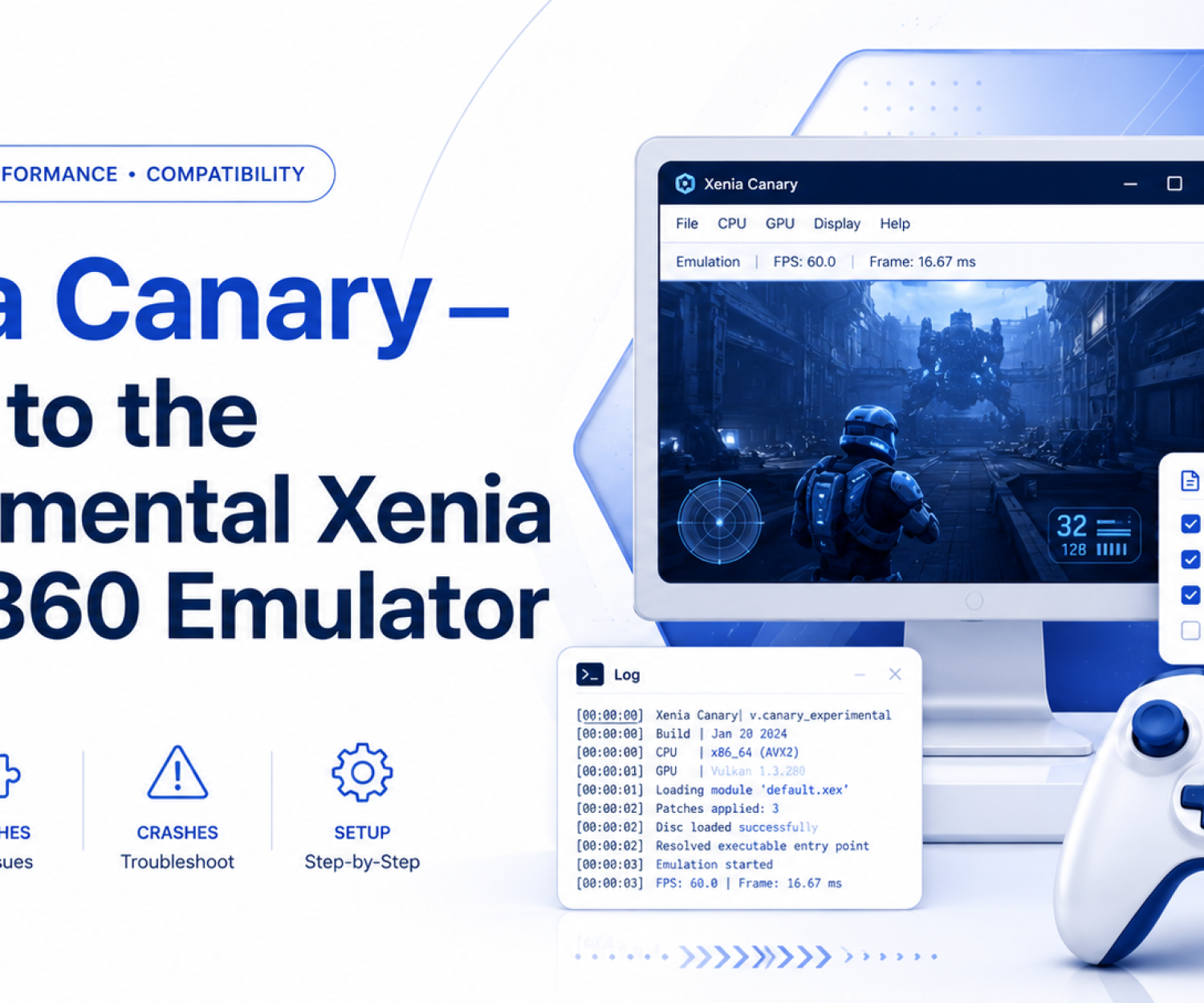
xenia canary is an open-source Xbox 360 emulator for Windows and Linux operating systems. It is designed to replicate the functionality of the Xbox 360 console, allowing users to play Xbox 360 games on their PC. Keep in mind that emulating a gaming console is a complex task, and while xenia canary emulator has made significant progress, not all games are fully compatible or run perfectly.
Our Journey:
- Origins: A brief history of the Xenia project and how Xenia Canary evolved as a fork focused on innovation and pushing the limits of what’s possible in Xbox 360 emulation.
- Team: Introduce the core team of developers and contributors behind Xenia Canary, with links to their profiles or contributions.
Key Features:
- Enhanced Performance: Utilizing the latest advancements in emulation technology to deliver smoother gameplay and higher frame rates.
- Broad Game Support: Continually expanding the list of supported titles, with a focus on achieving perfect emulation for all Xbox 360 games.
- Customizable Settings: Deep customization options for graphics, controls, and performance, allowing users to tailor the experience to their hardware and preferences.
- Community-Driven: Active community engagement drives many of the updates and features, ensuring that Xenia Canary meets the needs of its users.
Mission Statement:
- “To preserve and celebrate the legacy of Xbox 360 gaming by delivering the most comprehensive and accessible emulation experience available, empowering gamers to relive their favorite titles with modern enhancements.”
Features:
In-Depth Features Overview:
- Performance Enhancements:
- Dynamic Resolution Scaling: Automatically adjusts resolution for optimal performance without sacrificing visual quality.
- Multithreaded Emulation: Leverage multi-core processors to boost emulation speed and reduce latency.
- Optimized Shaders: Custom shader support for enhanced lighting, shadows, and post-processing effects.
- Advanced Caching: Reduces stuttering and load times by caching frequently accessed data.
- Graphics and Visuals:
- 4K Resolution Support: Experience Xbox 360 classics in stunning 4K.
- HDR Support: High Dynamic Range rendering for richer colors and better contrast.
- Texture Filtering: Improved texture quality through advanced filtering techniques.
- Aspect Ratio Correction: Maintain the original aspect ratio or customize it to fit modern displays.
- Gameplay and Controls:
- Custom Keybindings: Full customization of keyboard, mouse, and controller inputs.
- DualShock and Xbox Controller Support: Seamless integration with popular controllers.
- Rumble Support: Realistic feedback for a more immersive experience.
- Hotkeys: Assign quick actions and commands to easily accessible keys.
- Save and Load:
- Save States: Save your game progress at any point, with the ability to load from multiple states.
- Cloud Saves: Sync your saves across devices to pick up where you left off anywhere.
- Auto-Save: Automatic save features to prevent data loss during gameplay.
- Modding and Extensions:
- Mod Support: Easily install and manage mods to enhance or alter game content.
- Custom Patches: Apply patches for bug fixes, improvements, or fan translations.
- Plugin Architecture: Extend Xenia Canary’s functionality with third-party plugins.
Compatibility
Game Compatibility Database:
- Searchable Database: An interactive tool where users can search for their favorite Xbox 360 titles and check their compatibility with Xenia Canary.
- User Ratings: Allow users to rate the emulation quality of each game.
- Reporting Issues: Users can report bugs or issues with specific titles, contributing to future updates.
Compatibility Tiers:
- Perfect Emulation: Games that run flawlessly with full functionality.
- Playable: Games that are mostly functional with minor issues.
- In Progress: Titles that are being actively worked on for better support.
- Unsupported: Games that currently do not work with Xenia Canary.
System Requirements:
- Minimum: Basic requirements for running Xenia Canary.
- Recommended: Suggested hardware for an optimal experience.
- Advanced: Hardware recommendations for running games at higher settings (4K, HDR, etc.).
Featured Games:
- Spotlight on Popular Titles: Highlight a rotating selection of popular Xbox 360 games that run exceptionally well on Xenia Canary, with brief descriptions and screenshots. For example:
- Halo 3: “Experience the iconic shooter in stunning HD with improved frame rates and enhanced graphics.”
- Red Dead Redemption: “Relive the Wild West with smoother gameplay and advanced texture filtering.”
- Gears of War 2: “Dominate the battlefield with optimized performance and full controller support.”
Gameplay Videos:
- Embed gameplay videos or trailers showcasing Xenia Canary’s capabilities. Include comparisons between the original Xbox 360 graphics and the enhanced visuals on Xenia Canary.
User Stories:
- Gamers’ Experiences: Share stories from users who have rediscovered their favorite games or experienced them in a new way thanks to Xenia Canary. Include quotes and photos (with permission) to add a personal touch.
Roadmap and Future Plans
Development Roadmap:
- Upcoming Features: A visual timeline or roadmap detailing upcoming features, improvements, and major updates. For example:
- Q4 2024: Introduction of cloud save support.
- Q1 2025: Enhanced multiplayer functionalities.
- Q2 2025: Linux and Mac OS compatibility.
User-Requested Features:
- Highlight features and updates that have been requested by the community, showing that user feedback directly influences the development of Xenia Canary. Provide a voting system where users can prioritize the features they want to see next.
Beta Program:
- Invite users to join the beta testing program to get early access to new features and help shape the future of the emulator. Provide a sign-up form and explain the benefits of participating in the beta program.
Integration and Tools
Third-Party Tools and Plugins:
- Recommended Plugins: List and provide download links to third-party plugins that enhance the Xenia Canary experience. For example, plugins that add new features, improve compatibility, or enhance performance.
- Integration with Popular Tools: Discuss how Xenia Canary integrates with popular gaming tools like Steam, OBS for streaming, or Discord for in-game chat. Provide setup guides or links to tutorials.
Custom Shader Packs:
- Offer downloadable shader packs that users can install to further customize the visual output of their games. Include instructions on how to apply these shaders within Xenia Canary.
Comparison Section
Comparison with Other Emulators:
- Why Choose Xenia Canary? Create a comparison chart that highlights the key differences and advantages of Xenia Canary over other Xbox 360 emulators. Focus on aspects like performance, compatibility, features, and ease of use.
Emulation vs. Original Console:
- Performance and Visuals: Compare the experience of playing Xbox 360 games on Xenia Canary versus the original console. Discuss improvements such as higher frame rates, better resolution, and modern controller support.
Developer Corner
For Developers:
- Open Source Contributions: Encourage developers to contribute to Xenia Canary by providing resources such as API documentation, coding standards, and links to the GitHub repository.
- Developer Blog: A dedicated blog for developers to share insights, tutorials, and updates related to the technical aspects of Xenia Canary. Include guest posts from community developers.
Modding Tools:
- Create Your Own Mods: Offer tools and guides for creating and distributing mods for Xbox 360 games running on Xenia Canary. Provide a platform for sharing mods with the community.
Technical Documentation:
- Provide comprehensive documentation for advanced users and developers, including details on the emulator’s architecture, compatibility layers, and performance optimization techniques.
Partner and Collaborations
Collaborations:
- Partner with Modding Communities: Highlight any partnerships or collaborations with modding communities, other emulator projects, or tech companies that help improve Xenia Canary.
Affiliate Program:
- Introduce an affiliate program where content creators, bloggers, and influencers can promote Xenia Canary and earn rewards or recognition.
Industry Recognition:
- Awards and Mentions: Showcase any industry awards, mentions in gaming publications, or endorsements from well-known figures in the gaming or emulation communities.
Localization and Language Support
Language Options:
- Multilingual Support: Provide the option for users to view the Xenia Canary website and emulator interface in multiple languages. Include a language selector at the top of the page.
Community Translations:
- Encourage the community to contribute translations for the emulator and website content, with credits given to contributors. Highlight how Xenia Canary is making emulation accessible to gamers worldwide.
Localized Tutorials:
- Offer tutorials and guides in different languages to cater to a global audience. These can include video tutorials, text guides, and localized FAQs.
Accessibility
Accessibility Features:
- Interface Customization: Discuss how Xenia Canary supports accessibility features such as customizable UI elements, text-to-speech options, and high-contrast modes.
- Controller Accessibility: Highlight support for accessibility controllers or adaptive input devices, ensuring that Xenia Canary is playable by gamers of all abilities.
Community Contributions:
- Share stories or testimonials from users who have benefited from Xenia Canary’s accessibility features. Encourage users to suggest further improvements.
Success Stories and Case Studies
Case Studies:
- From Concept to Reality: Share in-depth case studies of how Xenia Canary has been used in unique or interesting ways, such as in educational settings, by preservationists, or by developers working on Xbox 360 game remakes.
User Milestones:
- Achievement Unlocked: Celebrate milestones reached by the Xenia Canary community, such as the 1,000th game supported, a significant performance breakthrough, or the release of a highly requested feature.
Historical Impact:
- Preserving Gaming History: Discuss the role of Xenia Canary in preserving the history of Xbox 360 gaming, particularly for titles that are no longer available or are difficult to find.
Newsletter and Updates
Stay Informed:
- Newsletter Sign-Up: Offer a newsletter where users can receive the latest news, updates, and exclusive content related to Xenia Canary directly in their inbox.
- Exclusive Content: Mention the availability of exclusive content such as early access to features, behind-the-scenes insights, and community spotlights for newsletter subscribers.
Blog Integration:
- Recent Posts: Include a section that displays the latest blog posts on the homepage, ensuring users stay up-to-date with recent developments.
Testimonials and Reviews
User Testimonials:
- What Our Users Say: Expand on user testimonials with video reviews or detailed written reviews from satisfied users. These can include stories about how Xenia Canary has enhanced their gaming experience or helped them reconnect with old favorites.
Professional Reviews:
- Industry Reviews: Highlight positive reviews from gaming or technology websites, bloggers, or YouTubers. Include quotes, star ratings, and links to full reviews.
Rate Us:
- Encourage users to leave their reviews and ratings on various platforms, such as the website, forums, or social media.
Final Call to Action (CTA)
Join the Xenia Canary Community:
- Why Wait? Start Playing Today! A strong final CTA encouraging visitors to download Xenia Canary, join the community, or participate in the development of the project.
- Support Us: A CTA to donate, become a patron, or contribute code, emphasizing the role of the community in keeping Xenia Canary alive and thriving.
FAQs
Frequently Asked Questions
What is Xenia Canary?
Xenia Canary is an advanced version of the Xenia Xbox 360 emulator, designed to run Xbox 360 games on your PC. It features enhanced compatibility, performance improvements, and experimental features not found in the standard version of Xenia.
How do I download Xenia Canary?
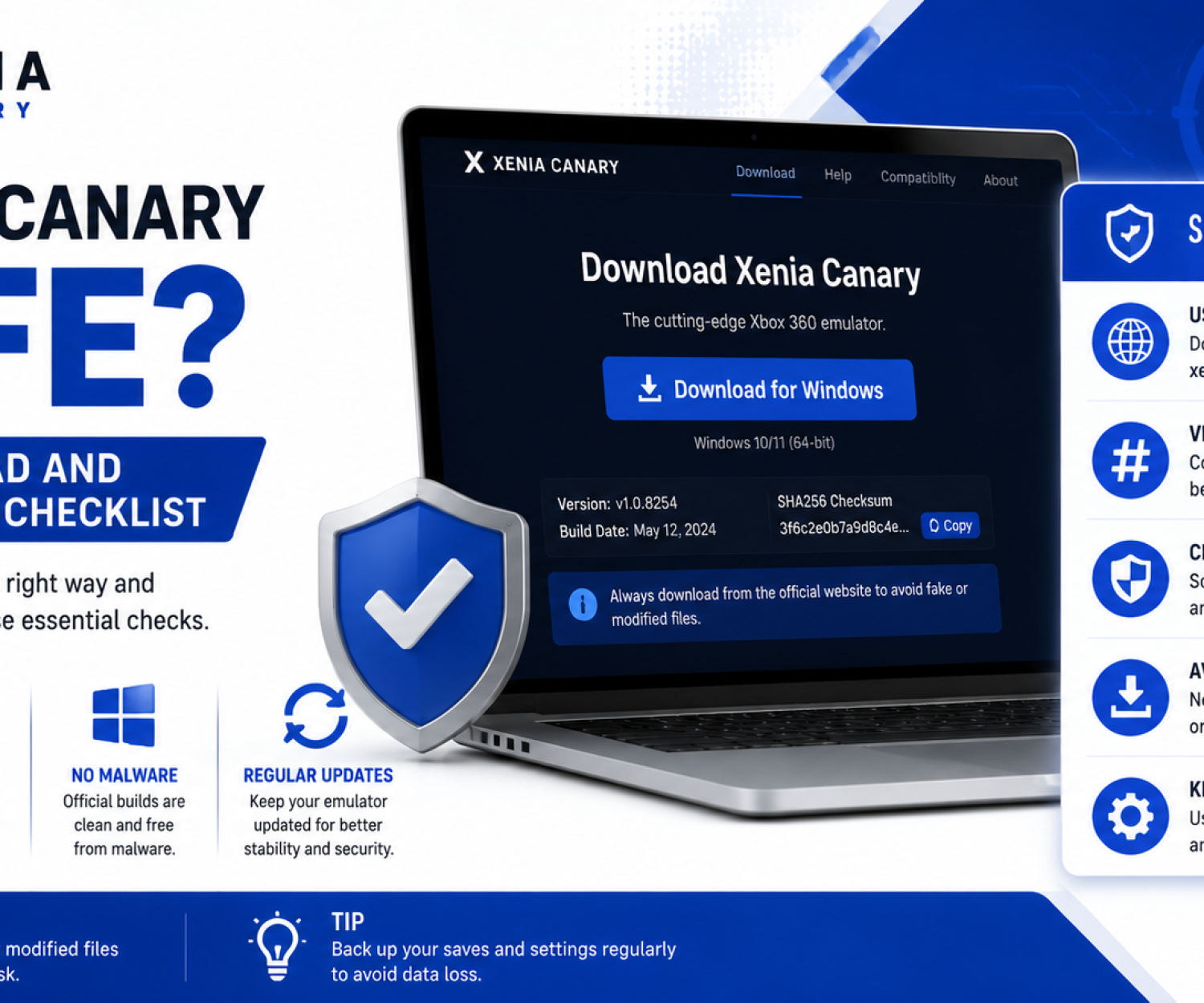
You can download the latest version of Xenia Canary directly from our official website on the Download page. Both stable and experimental builds are available for download.
What are the system requirements for Xenia Canary?
The minimum requirements include a 64-bit Windows operating system, a modern multi-core processor, 8GB of RAM, and a compatible GPU with DirectX 12 support. For optimal performance, we recommend a more powerful CPU and GPU.
Can I play all Xbox 360 games on Xenia Canary?
While Xenia Canary supports a large number of Xbox 360 titles, not all games are fully compatible yet. You can check the Compatibility section on our website for detailed information on which games work best.
Is Xenia Canary legal to use?
Yes, Xenia Canary is legal to use as an emulator. However, downloading or using ROMs/ISOs without owning the original game is illegal. We encourage users to only emulate games they own legally.
How do I set up Xenia Canary?
Setting up Xenia Canary is simple. Download the emulator from our website, extract the files, and open the application. You can then load your Xbox 360 game files and start playing. Detailed setup instructions are available
Does Xenia Canary support save states?
Yes, Xenia Canary supports save states, allowing you to save your progress at any point in a game and reload it later. This feature is especially useful for games that don’t have frequent save points.
Can I use a controller with Xenia Canary?
Absolutely! Xenia Canary supports a wide range of controllers, including Xbox and PlayStation controllers. You can customize your controls through the emulator’s settings.
How often is Xenia Canary updated?
Xenia Canary is regularly updated with new features, performance improvements, and compatibility fixes.
Where can I report a bug or issue?
You can report bugs or issues through our Support section or directly on our GitHub page. Providing detailed information about the problem will help our developers address it more effectively.
Does Xenia Canary support 4K resolution?
Yes, Xenia Canary supports 4K resolution, allowing you to enjoy Xbox 360 games with enhanced visual quality on compatible hardware.
How do I contribute to the Xenia Canary project?
You can contribute to Xenia Canary by joining our development team on GitHub, submitting code, reporting bugs, or donating to support ongoing development. Visit our Contribute page for more information.
What is the difference between Xenia Canary and Xenia?
Xenia Canary is a fork of the original Xenia emulator with a focus on experimental features, enhanced performance, and broader game compatibility. It includes features and updates that may not be present in the standard Xenia version.
Can I play online multiplayer games using Xenia Canary?
Xenia Canary currently does not support Xbox Live or online multiplayer functionalities. However, you can still play local multiplayer games that do not require online connectivity.
How do I customize the graphics settings in Xenia Canary?
You can customize graphics settings such as resolution, texture filtering, and aspect ratio through the emulator’s settings menu. Advanced users can also tweak shader settings for enhanced visual effects.
Where can I find the latest news and updates about Xenia Canary?
The latest news, updates, and development progress can be found on our Blog and social media channels. Be sure to subscribe or follow to stay informed about new features and game compatibility updates.
What should I do if a game is not running smoothly?
If a game is not running smoothly, try adjusting the emulator’s performance settings, such as lowering the resolution or disabling certain graphical features. Check our FAQ for performance tips or visit the Support forum for additional help.
Is there a way to mod games using Xenia Canary?
Yes, Xenia Canary supports game mods. You can install and manage mods to alter or enhance your gaming experience. Be sure to follow modding instructions carefully, as some mods may cause instability.
How do I update Xenia Canary?
You can update Xenia Canary by downloading the latest version from our website and replacing the old files with the new ones. Make sure to back up your save states and configurations before updating.
Does Xenia Canary support cloud saves?
Xenia Canary is working towards implementing cloud save support in future updates. Currently, you can manually back up your save files to cloud storage services like Google Drive or Dropbox.

DISCLAIMER: xenia is not for enabling illegal activity. The goal of this project is to experiment, research, and educate on the topic of emulation of modern devices and operating systems. All information is obtained via reverse engineering of legally purchased devices, games, and information made public on the internet.
Latest Release: Available here.