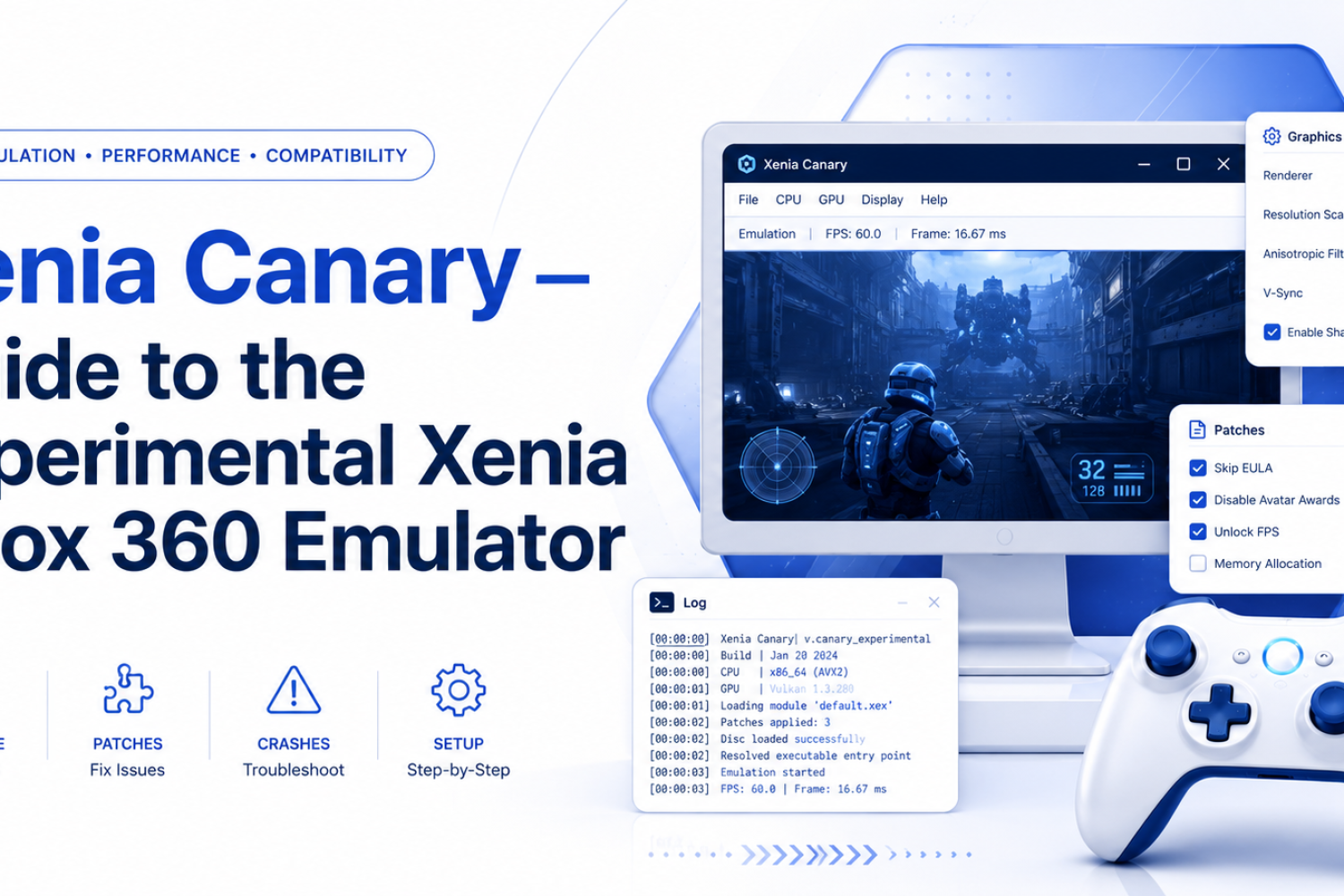
Xenia Canary is an experimental Xbox 360 emulator designed for users who want access to recent fixes, game-specific improvements, and features that may not yet be available in the main Xenia build.
This guide explains what Xenia Canary is, how it works, and why some users choose it over the main emulator. It also covers installation, compatibility, configuration, performance tuning, experimental features, and common troubleshooting steps.
What Is Xenia Canary?
Xenia Canary is an experimental fork of the Xenia Xbox 360 emulator. It uses the main Xenia project as its foundation but receives more frequent updates and includes changes that may not be present in Xenia Master.
The emulator translates Xbox 360 software so compatible games can run on modern computers. It is primarily intended for Xbox 360 titles and does not provide backward compatibility for original Xbox games.
Canary builds often introduce new compatibility fixes, graphics changes, configuration options, debugging tools, and support for community-created game patches. These additions may help certain games run better, but they can also cause crashes, visual errors, or performance regressions because the changes are experimental.
Xenia Canary is suitable for users who are comfortable testing different builds and settings. It is also useful for developers and compatibility testers who want to examine logs, report bugs, and evaluate recent emulator changes.
The emulator does not include Xbox 360 games. Users must provide their own legally obtained game data and should download Canary only from its official project repository.
Developer Tools and Logging
Xenia Canary includes developer-focused tools for examining how Xbox 360 software behaves during emulation. These tools can help developers trace CPU instructions, inspect graphics activity, identify unimplemented functions, and study the cause of crashes or incorrect behaviour.
The emulator creates a log file during each session. This file records system information, emulator settings, game details, warnings, errors, and unsupported functions. It is useful when comparing builds or preparing a detailed bug report.
Advanced configuration options can also enable extra graphics messages, validation output, code annotations, and debugging information. These settings may produce very large log files and reduce performance, so they should remain disabled during normal gameplay unless a developer requests them.
Who Should Use Xenia Canary?
Xenia Canary is suitable for users who want to test recent compatibility improvements, community game patches, and experimental features. It can be useful when a game has problems in the main Xenia build but has received a specific Canary fix.
Advanced users may prefer Canary because it provides more configuration options and receives frequent development builds. It also allows them to compare graphics backends, test game-specific workarounds, and report regressions.
Developers and technical testers can use Canary to investigate Xbox 360 software, examine logs, test code changes, and contribute compatibility reports. Its frequent updates make it useful for development, but they can also introduce new problems.
Users who only want a simple and consistent experience should be more careful. A newer Canary build may improve one game while causing crashes, graphical errors, or lower performance in another. Keeping a backup of a working build is recommended.
Experimental Features (Netplay, Async Patches, Debugging Hooks)
Xenia Canary serves as a testing environment for features that may not be available in the main Xenia branch. These features can change quickly and may not work correctly with every game.
Experimental netplay is available through a separate Windows build. It does not connect to the official Xbox Live service, and its compatibility depends on the game, network setup, emulator version, title update, and other settings.
Canary also supports community-created game patches. These patches may change frame-rate limits, resolution values, graphical effects, gameplay behaviour, and title-specific settings. Users must select patches that match the correct game and title-update version.
The term async patches is not clearly defined as a separate official Canary feature. It may refer to experimental asynchronous operations or patch-related development changes. Users should check the release notes before enabling options described with this term.
Debugging hooks provide additional information for developers investigating CPU, graphics, kernel, memory, and timing problems. They are mainly designed for testing and diagnosis rather than improving normal gameplay.
Performance Improvements and Platform Support
Canary builds frequently include experimental CPU, GPU, memory, shader, and timing changes. These updates may improve frame rates, reduce graphical errors, shorten loading times, or allow a previously unsupported game to reach gameplay.
Performance improvements are game-specific. A change that helps one title may have no effect on another, and some updates can introduce regressions. Hardware, graphics drivers, patches, resolution scaling, and emulator settings also affect the final result.
Xenia Canary primarily supports 64-bit Windows systems. It requires a processor with AVX or AVX2 support and a graphics card compatible with Direct3D 12 or Vulkan. OpenGL and Direct3D 11 are not supported.
Linux use is also possible, although support remains less established than Windows. The official Quickstart documentation lists Linux through Proton, while development work continues on broader Linux compatibility. Native macOS support is not currently provided.
How Xenia Canary Differs from Official Xenia
Xenia Canary is an experimental fork of the main Xenia Xbox 360 emulator. It is based on the same core project but includes changes, fixes, and test features that may not be present in the main Xenia branch.
The main Xenia project provides the original research foundation, while Canary focuses on faster experimentation. Canary builds are released frequently and are commonly identified by a short commit code followed by canary_experimental.
Canary may offer better results for games that require recent compatibility fixes or community patches. It also provides additional configuration choices and development tools for advanced users.
However, Canary should not be treated as a guaranteed upgrade for every game. Its experimental changes may introduce crashes, visual problems, audio issues, or performance regressions. Users should test new builds separately instead of immediately replacing a reliable version.
Key Features and Experimental Functionality
Xenia Canary provides access to recent emulator changes, game-specific fixes, community patches, advanced configuration options, and detailed diagnostic logging. Its main purpose is to test improvements before they become mature or widely reliable.
Users can adjust graphics backends, resolution scaling, Vsync, input behaviour, language, storage, and other settings through the configuration file. The available options allow users to troubleshoot individual games, but unsuitable settings can also cause new problems.
Community game patches are another important feature. Depending on the title, a patch may unlock a higher frame rate, disable an unwanted effect, change rendering behaviour, or work around an emulation limitation.
Canary also provides experimental netplay builds, debugging hooks, detailed logs, and frequent development releases. These features make it valuable for testing and research, but they do not guarantee complete Xbox 360 compatibility.
The best approach is to begin with default settings and the latest standard Canary build. Experimental patches and advanced options should only be added when a compatibility report, release note, or trusted project guide recommends them.
Quickstart: Install and Run a Game
Xenia Canary is a portable emulator, so it does not require a traditional installation wizard. Download the latest official Canary build, extract the archive into a dedicated folder, and run the emulator executable from that location.
Before opening the emulator, install the required Microsoft Visual C++ Redistributable and update your graphics drivers. Keeping the emulator outside protected folders, such as Program Files, can also reduce permission and configuration problems.
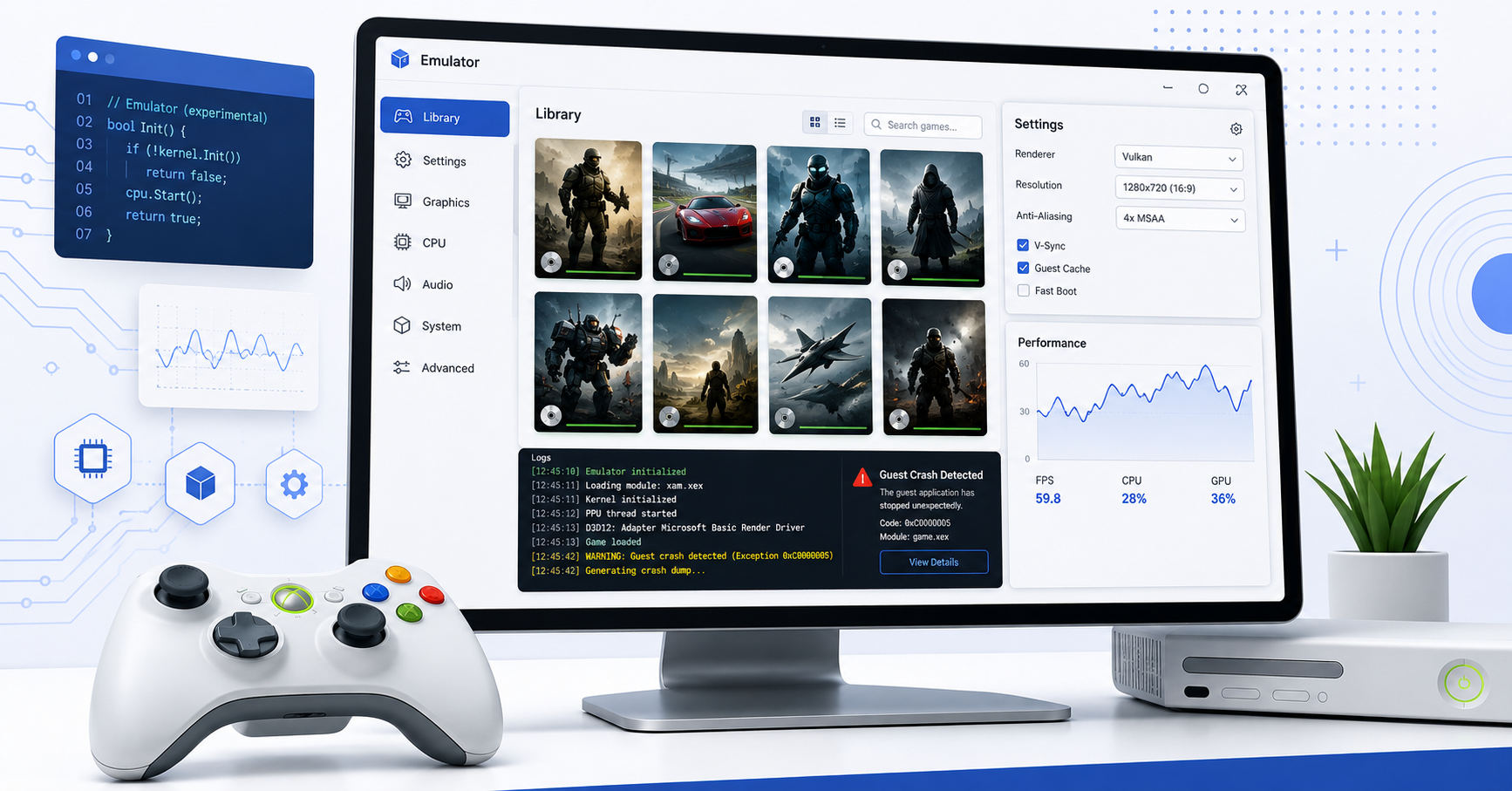
To start a game, open Xenia Canary and select the legally dumped Xbox 360 game file through the file menu. Extracted games are commonly launched through their default.xex file. Some digital or Games on Demand titles may appear as files without a normal extension. Xenia cannot run Xbox 360 games directly from a computer’s disc drive.
The emulator creates configuration, shader cache, and save-related files after it runs. Avoid changing advanced settings before confirming that the game launches with the default configuration. Game compatibility varies, so check the Canary compatibility information when a title crashes, freezes, or displays graphical errors.
System Requirements and Prerequisites
The current recommended setup includes Windows 11 64-bit, a processor with six or more CPU cores, an NVIDIA GTX 980 Ti or newer graphics card, and at least 6 GB of RAM. Meeting these recommendations does not guarantee perfect performance because every Xbox 360 game places different demands on the emulator.
At minimum, Xenia Canary requires Windows 10 64-bit or Linux through Proton, a 64-bit x86 processor with AVX or AVX2 support, 4 GB of RAM, and a graphics card compatible with Direct3D 12 or Vulkan. OpenGL, Direct3D 11, and older graphics APIs are not supported.
Integrated graphics may provide frame rates that are too low for comfortable gameplay. AMD graphics cards can also experience driver-related crashes in some situations. Users should install the latest GPU driver directly from NVIDIA, AMD, or Intel rather than depending only on Windows Update.
The Microsoft Visual C++ Redistributable for Visual Studio 2017–2026 is also required. Xenia Canary does not need Xbox 360 BIOS files, firmware, or other console system files, but users must provide their own legally obtained game data.
Step-by-Step Install & First Run
Xenia Canary is portable software, so it does not use a standard installation wizard. Download the latest Windows build from the official Xenia Canary repository and extract the complete archive into a separate folder.
- Install the required 64-bit Microsoft Visual C++ Redistributable.
- Update the graphics driver through NVIDIA, AMD, or Intel.
- Extract Xenia Canary into a writable folder.
- Open xenia_canary.exe to create the initial configuration files.
- Select File > Open and locate the legally dumped game.
- For an extracted game, choose its default.xex file.
- Allow the game to reach its menu before changing advanced settings.
Xenia Canary does not require Xbox 360 BIOS or firmware files. However, it cannot run games directly from a normal computer DVD drive, so users must prepare their own legally obtained game data in a supported format.
First-Run Tips and Verifying a Working Setup
Start with the default configuration and test only one game. The first launch may take longer because Xenia Canary must compile shaders and create cache, configuration, profile, and content folders.
A successful basic setup normally means that the emulator opens without a CPU, graphics, or runtime error. It should detect the controller, load the selected game, display graphics, and produce audio. Reaching the game menu is a useful initial test, although it does not confirm that the entire game is playable.
Check that the computer supports AVX or AVX2 and that the graphics card supports Direct3D 12 or Vulkan. Xenia performs hardware checks during startup, and removing these checks will not make unsupported hardware compatible.
If the game fails, test it with the newest default Canary build before installing patches or editing configuration values. Also check the official compatibility entry because some games require specific settings, title updates, or community patches.
Building Xenia Canary from Source
Building Xenia Canary from source is mainly intended for developers, contributors, and advanced users who need to test recent code changes. It also allows developers to create debug builds, inspect logs, test unfinished features, and modify the emulator.
The process is more complex than downloading a prebuilt release. Source builds require development tools, sufficient storage, current graphics drivers, and familiarity with Git, command-line tools, and compiler errors.
Build Prerequisites and Environment Setup
A 64-bit computer is required for building and running Xenia Canary. On Windows, the official build documentation currently lists Windows 10 or later, Visual Studio 2022 or newer, CMake, a recent Windows SDK, 64-bit Python added to the system PATH, Git, and the Vulkan SDK.
When installing Visual Studio, include the desktop C++ development tools and an appropriate Windows SDK. The Vulkan SDK is needed for shader-related build tools and is normally detected automatically when installed in its standard location.
Linux building is still described as extremely experimental and incomplete. The current build system uses CMake, Ninja, and Clang 19 or newer. It also requires Vulkan development files, SDL2, GTK3, LZ4, X11-related libraries, and other compiler packages.
The Linux build also uses spirv-opt and glslangValidator. Older SPIR-V tools may not support the required build options, so developers may need a recent Vulkan SDK and a correctly configured VULKAN_SDK environment variable.
Build Steps for Windows and Linux
On Windows, clone the Canary repository, enter its folder, and run the included xb build script:
git clone https://github.com/xenia-canary/xenia-canary.git
cd xenia-canary
xb setup
xb build –config=release
The xb setup command prepares dependencies and submodules. The release configuration creates an optimized build, while a normal build is more suitable for development and debugging. Developers can use xb devenv to generate the project files and open the solution in Visual Studio.
On Linux, install the required development packages, clone the same repository, and run the project’s build script. The normal xb build workflow uses CMake and Ninja with Clang as the default compiler.
Linux users should confirm that Vulkan drivers and shader compilation tools are available before building. Native Linux support remains experimental, so successful compilation does not guarantee that every game or emulator feature will work correctly.
Common Build Errors and Fixes
A missing Python or Git command usually means that the program is not installed or is not available through the system PATH. Restart the terminal after installing development tools and confirm that each command can be run independently.
CMake or Windows SDK errors often appear when required Visual Studio components were not selected. Modify the Visual Studio installation and add the desktop C++ workload, CMake tools, and a supported Windows SDK.
Vulkan build errors can be caused by a missing SDK, an incorrect environment variable, or outdated shader tools. Linux users should check the reported spirv-opt version and install a newer Vulkan SDK when the system package is too old.
Submodule or dependency errors may occur when the repository was downloaded as a basic source archive instead of cloned with Git. Running xb setup again or using xb pull can update the source, rebase local changes, refresh submodules, and regenerate required project files.
Game Compatibility
Xenia Canary does not provide complete compatibility with the entire Xbox 360 library. Results vary according to the game, emulator build, title update, graphics backend, hardware, driver version, and configuration.
Compatibility reports should be treated as testing records rather than permanent guarantees. A game marked playable in one build may develop problems in a newer experimental release.
How to Check a Game’s Compatibility Status
Open the official Xenia Canary game-compatibility repository and search for the game by its title or hexadecimal Title ID. The Title ID is especially useful when several games have similar names or different regional releases.
Each compatibility entry can contain test results, screenshots, log files, hardware details, emulator versions, required patches, and labels describing known problems. Check the date of the newest report because older results may not represent current Canary behaviour.
Read all labels attached to the issue instead of looking only at the main compatibility class. A game marked state-gameplay may still have silent audio, graphical corruption, random crashes, save errors, or performance problems.
Compatibility Overview and Common Compatibility Classes
Compatibility classes describe how far a game progresses during testing. Lower classes may indicate that a title crashes during startup, displays only an introduction, or reaches menus without functional gameplay.
The state-gameplay label means that functional gameplay is available. It does not mean the game can be completed or played without serious errors. The state-playable label is stronger and indicates that the title can reasonably be played from beginning to end with few or no major problems.
Additional labels describe specific conditions. Examples include apu-silent for missing audio, apu-slow for slow or stuttering sound, gpu-drawing-black for mostly black rendering, crash-random for unstable crashes, and custom-patch-required when a community patch is necessary.
Known Limitations and Typical Workarounds
Common limitations include black screens, missing objects, incorrect lighting, audio delays, broken saves, unstable frame rates, crashes, and unsupported online functions. Some problems result from unfinished CPU, GPU, audio, kernel, or timing emulation.
A compatibility entry may recommend a particular graphics backend, title update, configuration value, or community patch. Apply only the workaround listed for the correct game version because settings that help one title may reduce performance or break another.
Switching between Direct3D 12 and Vulkan can help identify a backend-specific issue. Returning resolution scaling and experimental hacks to their defaults can also resolve problems caused by an unsuitable configuration.
When a regression appears after updating Canary, keep the new build but test the previously working release in a different folder. This comparison helps determine whether the problem comes from the game data, configuration, graphics driver, or emulator update.
Configuration & Performance Tuning
Xenia Canary creates a TOML configuration file that controls graphics, audio, input, language, storage, and experimental options. Newer Canary builds normally keep their configuration beside the emulator executable.
Close Xenia Canary before editing the configuration file. Saving it while the emulator is open may cause the program to overwrite the changes. Change one setting at a time so that unsuccessful adjustments can be reversed easily.
Graphics Backend, Rendering Settings and Presets
Xenia Canary supports Direct3D 12 and Vulkan. Direct3D 12 is commonly used on Windows, while Vulkan may produce different performance or rendering results depending on the game and graphics driver. OpenGL and Direct3D 11 are not supported.
Resolution scaling can improve image clarity by rendering above the original Xbox 360 resolution. However, higher scaling values increase GPU load and may cause lower frame rates, crashes, or graphical errors. Begin at the default 1x scale before testing 2x or higher settings.
Some advanced options improve accuracy at the cost of performance. For example, GPU readback may be needed for specific effects, while clearing memory page state can reduce corrupted textures in certain games but may lower performance. These options should only be enabled when a compatibility report recommends them.
There is no universal high-performance preset. A reliable approach is to use default values, select the suitable backend, test at native resolution, and then increase visual settings gradually.
Controller, Input Mapping and Passthrough
Xenia Canary supports XInput controllers by default, including common Xbox 360 and Xbox One controllers. Non-XInput devices can use the SDL input backend when supported.
The hid option can select automatic detection, SDL, XInput, or keyboard input. When an SDL controller is mapped incorrectly, the project documentation recommends placing a compatible gamecontrollerdb.txt file beside the Xenia executable.
Keyboard mode can operate as a virtual gamepad or as direct passthrough input. A keyboard acting as a gamepad can be assigned to one of four user slots. Mouse controls, Kinect, microphones, and several Xbox 360 accessories are not supported.
Input problems can also be caused by virtual controllers creating duplicate devices. Close unnecessary controller tools and reconnect the physical controller before testing again.
Save Data, Folders, Logging and Debug Pins
Xenia Canary normally works in portable mode, so its content, configuration, cache, and save-related folders are stored beside the executable. Other Xenia configurations may use Documents\Xenia, but Canary keeps its main files in its own directory.
Back up the content folder before changing builds, profiles, title updates, or patches. Some games have incomplete save support, especially when their saves depend on an Xbox profile.
The emulator writes diagnostic information to a log file. Developers running a custom build can override its filename with the –log_file launch option. Additional debug flags can produce annotations or validation messages for investigating JIT and graphics problems.
In this context, “debug pins” generally refers to advanced debug flags, hooks, break options, and command-line switches rather than physical pins. These options are intended for development and bug investigation and should remain disabled during normal gameplay unless a developer requests them.
Troubleshooting & Common Errors
Begin troubleshooting with a clean, current Canary build and default configuration. Test legally dumped game data without third-party launchers, custom patches, overlays, or unusual command-line options.
Check the official compatibility entry before assuming that the installation is broken. Some errors are known emulator limitations and cannot be corrected through local settings.
Crashes, Black Screen and Launch Failures
A startup failure may be caused by unsupported hardware, a missing Visual C++ runtime, an outdated graphics driver, damaged game data, or an incompatible configuration. Confirm that the processor supports AVX or AVX2 and that the graphics card supports Direct3D 12 or Vulkan.
For a black screen, restore the default resolution and graphics settings before switching between Direct3D 12 and Vulkan. The compatibility database includes labels for games with mostly black rendering, missing graphics, corrupted objects, shader errors, and driver-specific problems.
Delete or temporarily rename the configuration file to let Canary create a fresh one. Do not immediately delete the content folder because it may contain save data and profiles.
When only one game fails, verify its Title ID, title update, patch version, and compatibility report. When every game fails, focus on the runtime, hardware, drivers, emulator files, and global configuration.
Audio Issues, Stuttering and Desync
Audio may become delayed, silent, slow, distorted, or out of sync when the emulator cannot maintain stable timing. The official FAQ notes that audio remains an area with known limitations, and some delay problems do not have a universal fix.
Reduce resolution scaling and close background programs to determine whether poor overall performance is affecting sound. Restore frame-rate and Vsync options to their defaults because changing timing values can alter game speed in some titles.
Canary includes an audio queue option that can influence delay, but lowering buffered frames too far may create new stuttering or stability problems. Make small adjustments and return to the default value when no improvement appears.
Check the game’s compatibility labels for apu-silent, apu-slow, or apu-garbage. These labels indicate known emulation problems that may require future development rather than a local setting change.
Netplay and Other Experimental Feature Problems
Xenia Canary’s netplay feature is experimental and uses a separate Windows build. It does not connect to official Xbox Live services, and standard Xenia documentation does not promise complete System Link or online compatibility.
Connection failures may be caused by incompatible builds, unsupported games, firewall rules, different game or title-update versions, unstable network conditions, or unfinished netplay functions. All players should use matching game data, updates, patches, and emulator versions.
Experimental patches and debug features may stop working after a Canary update. Test the game without them first, then restore each feature separately. Keep an older working build because new experimental changes can introduce regressions.
Netplay issues should not be reported as ordinary game-compatibility problems unless the same error also occurs during normal offline play.
How to Collect Logs and Provide a Useful Bug Report
Reproduce the problem with the newest official Canary build and a default configuration. Close Xenia after the error so the log file contains the complete session, then copy the log before launching another game.
A useful report should include the Canary build or commit tag, operating system, CPU, GPU, graphics driver, selected backend, game Title ID, title-update version, patches, and exact steps required to reproduce the problem.
Explain what happened and what should have happened. Attach the log, screenshots, or a short recording that clearly demonstrates the error. Crash reports are more useful when they also include a call stack from a debug build.
Search existing issues before submitting a new one. The main issue tracker is intended for bugs, feature requests, and development work rather than general technical support or questions about obtaining games.
Contributing & Community Resources
Users can contribute by testing recent builds, updating compatibility reports, sharing accurate logs, documenting reproducible problems, improving documentation, or submitting code through the official Xenia Canary repository.
Code contributors should read the project’s building instructions and style guide, run the formatting tools before committing changes, and explain how technical behaviour was researched. The project requires legally obtained research and does not accept information or code taken from confidential Xbox development materials.
The official GitHub repository provides the source code, release builds, issue tracker, Wiki, build documentation, roadmap, and compatibility links. The project also maintains a Discord community for emulator discussion and a development channel for technical contributors.
Community discussion should remain focused on legal emulation, development, testing, and personally owned game data. Requests for copyrighted game downloads, system files, or illegal resources are not accepted by the project.
Frequently Asked Questions
Xenia Canary can be confusing for first-time users because it receives frequent experimental updates and behaves differently across games. The following questions explain its safety, game support, system requirements, updates, and general use.
Is Xenia Canary Free to Use?
Yes, Xenia Canary is free and open-source software. Users can download its official builds without paying a license fee. The emulator does not include Xbox 360 games, firmware, or copyrighted system files. You must provide your own legally obtained game data. Always download the emulator from its official GitHub repository to avoid outdated, modified, or potentially unsafe files.
Is Xenia Canary Better Than the Main Xenia Emulator?
Xenia Canary is not automatically better for every game. It includes newer experimental fixes, patches, and configuration options that may improve compatibility or performance in certain titles. However, these changes can also introduce crashes, graphical problems, or lower frame rates. The best version depends on the specific game, hardware, graphics driver, and emulator build being tested.
Can Xenia Canary Run Every Xbox 360 Game?
No, Xenia Canary cannot run every Xbox 360 game perfectly. Some titles are fully playable, while others may have missing graphics, broken audio, unstable performance, or crashes. Compatibility can also change between releases. Users should check the official game compatibility database and read recent reports before changing settings or assuming that a problem comes from their installation.
Does Xenia Canary Need an Xbox 360 BIOS?
Xenia Canary does not require a separate Xbox 360 BIOS or firmware file for normal use. After downloading and extracting the emulator, users can launch supported game data directly. However, Xenia Canary does not provide games or console files. Users must prepare their own legally obtained Xbox 360 game copies in an emulator-supported format.
Can I Use Xenia Canary on a Low-End Computer?
Xenia Canary requires relatively modern hardware because Xbox 360 emulation places a heavy load on the processor and graphics card. The CPU must support AVX or AVX2, while the graphics card must support Direct3D 12 or Vulkan. Some lightweight games may run on modest systems, but integrated graphics and older processors often result in low frame rates or serious rendering issues.
How Often Should I Update Xenia Canary?
You do not need to install every new Canary release immediately. Frequent builds may contain useful fixes, but they can also introduce regressions. Update when the release notes mention a change related to your game or when your current build has a known problem. Keep a backup of any version that runs your game reliably before testing a newer experimental build.
Can Xbox 360 Controllers Be Used With Xenia Canary?
Yes, Xenia Canary supports common XInput controllers, including Xbox 360 and newer Xbox controllers connected to a computer. Some other gamepads may work through the SDL input backend. Controller support can vary by device, driver, and configuration. Unsupported accessories such as Kinect, microphones, and certain specialist Xbox 360 peripherals may not function correctly.
Is Xenia Canary Available for Linux and macOS?
Xenia Canary is mainly developed for 64-bit Windows systems. Linux users may run it through Proton, and experimental native Linux development also exists, but compatibility and setup may be less reliable than on Windows. Native macOS support is not currently available. Apple Silicon and older Intel-based Macs cannot run Xenia Canary directly through an officially supported macOS version.
Conclusion
Xenia Canary provides an experimental way to run compatible Xbox 360 games on modern computers. Its frequent updates, community patches, advanced configuration settings, and developer tools can offer improvements that are not yet available in the main Xenia build.
However, Canary development also means that stability can change between releases. Not every game will run correctly, and advanced settings do not provide a universal solution for crashes, graphics errors, or poor performance.
Start with the latest official build and default configuration. Check the compatibility database before applying patches, and keep a backup of any build that works well. With careful testing and suitable hardware, Xenia Canary can be a valuable option for Xbox 360 emulation, compatibility research, and experimental development.