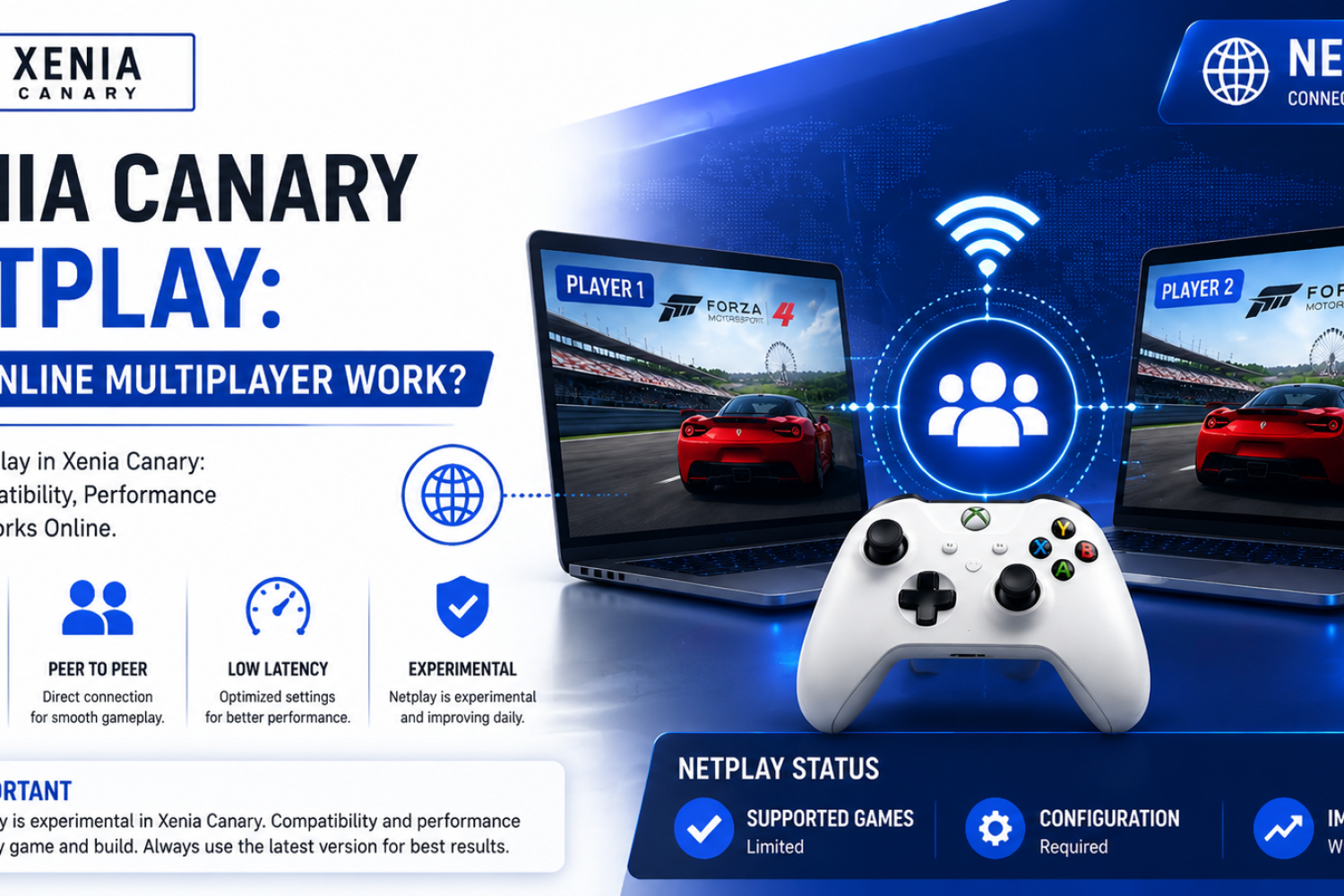
What is Xenia Netplay?
Xenia Netplay is an experimental multiplayer feature designed to bring online connectivity to Xbox 360 games running through the Xenia emulator. Its goal is to allow players to experience multiplayer features that originally depended on Xbox Live or system-link connections by using modern networking methods.
Traditional Xbox 360 multiplayer relied on official services, local network connections, or system-link setups. Xenia Netplay aims to recreate parts of this experience by allowing compatible games to communicate between players through the emulator environment.
Because Xenia Netplay is still under development, support and stability can vary between games. Some titles may work better than others, while certain multiplayer features may not function correctly due to emulator compatibility limitations.
The feature is mainly intended for users who want to test experimental online multiplayer functionality and provide feedback that can help improve future Xenia development.
Key features and who should use it
Xenia Netplay focuses on improving multiplayer possibilities for Xbox 360 emulation. It provides features that allow players to connect with others and test multiplayer gameplay outside the original console environment.
Key features may include:
- Multiplayer testing for supported Xbox 360 games.
- Network communication between Xenia users.
- Support for experimenting with online-style gameplay.
- A foundation for future multiplayer improvements.
Xenia Netplay is best suited for advanced emulator users, developers, and players who understand that experimental features may include bugs or limitations. It is not designed as a fully finished replacement for official Xbox Live services.
Players who enjoy testing new emulator features and helping report issues can benefit most from using Xenia Netplay.
Differences between Xenia Netplay and local/system-link play
Local multiplayer and system-link play on Xbox 360 relied on direct console connections or official networking features. These methods provided a stable way for multiple consoles to communicate without requiring internet-based services.
Xenia Netplay works differently because it operates inside an emulator environment. Instead of using original Xbox 360 hardware, it attempts to recreate multiplayer communication through software-based networking.
| Feature | Local/System-Link Play | Xenia Netplay |
| Hardware | Requires Xbox 360 consoles | Runs through Xenia emulator |
| Connection method | Local network or console links | Emulator-based network connection |
| Compatibility | Depends on original game support | Depends on Xenia multiplayer support |
| Stability | Mature Xbox 360 feature | Experimental and still developing |
The main advantage of Xenia Netplay is that it allows modern PC users to explore multiplayer features without needing original consoles. However, compatibility and reliability may not yet match the original Xbox 360 multiplayer experience.
How Xenia Netplay works
Xenia Netplay works by creating a communication layer between multiple Xenia instances running on different systems. Instead of using original Xbox 360 hardware, the emulator manages game data, player inputs, and network communication to recreate a multiplayer environment.
The feature depends on accurate synchronization between connected players. Each Xenia instance must process the same game state and exchange the necessary information to keep gameplay consistent across all connected systems.
Because Xbox 360 games were originally designed around console networking systems, Xenia Netplay requires advanced emulation techniques to translate those features into a modern PC-based multiplayer setup.
Architecture: peer-to-peer, host-relay and passthru modes
Xenia Netplay can use different networking approaches to handle communication between players. Each mode manages how game data moves between connected systems and how players interact during multiplayer sessions.
Peer-to-peer networking allows connected players to communicate directly with each other. This approach can reduce delays because data does not need to pass through an additional server, but it may depend on network conditions between all players.
Host-relay mode uses one player or a dedicated connection point to manage communication between participants. This can simplify connections because players communicate through a central host, but performance may depend on the host system and network quality.
Passthru modes focus on forwarding network communication in a way that allows games to use their original multiplayer logic while Xenia handles the connection process. The effectiveness of these modes depends on game compatibility and emulator development progress.
Input synchronization, desyncs and rollback basics
Multiplayer emulation requires accurate input synchronization so that every connected player sees the same game state. Xenia Netplay shares player actions between systems and attempts to keep gameplay consistent across all connected instances.
Desynchronization can occur when different Xenia instances process game data differently. A small difference in timing, system performance, or emulator behavior can cause players to see different results during gameplay.
Rollback techniques are commonly used in modern multiplayer systems to handle small network delays. The idea is to temporarily predict actions, then correct the game state when accurate input information becomes available.
In Xenia Netplay, synchronization methods are still part of ongoing development. Some games may experience delays, unexpected behavior, or connection problems depending on compatibility and network conditions.
Required Xenia components and build types (canary vs stable)
Using Xenia Netplay requires a compatible Xenia build that includes the necessary multiplayer features. Since Netplay is an experimental area of development, not every emulator version may provide the same functionality.
Xenia Canary builds usually receive newer features and testing improvements more frequently than stable releases. Players who want to experiment with Netplay typically use Canary versions because they include the latest development changes.
Stable builds focus more on reliability and general gameplay support. However, they may not include experimental features that are still being tested.
A successful Netplay setup also depends on updated system components, compatible game files, proper network configuration, and matching emulator versions between players.
Compatibility & supported games (Web)
Xenia Netplay compatibility depends on several factors, including the game itself, emulator support, networking features, and the stability of the current Xenia build. Since Netplay is still an evolving feature, not every Xbox 360 multiplayer title will work correctly.
Some games may launch and allow basic multiplayer testing, while others may experience connection problems, synchronization issues, crashes, or missing features. Compatibility can also change as developers improve Xenia and introduce new updates.
Checking current compatibility information before attempting a multiplayer session helps users understand whether a specific game is likely to work and what limitations may exist.
How compatibility is determined and common limitations
Game compatibility for Xenia Netplay is determined through testing, developer feedback, and community reports. A title may be considered compatible when players can connect successfully, maintain synchronization, and complete gameplay without major problems.
However, multiplayer compatibility can be more difficult than standard game emulation because it requires accurate network communication and consistent game-state processing between multiple systems.
Common limitations may include connection failures, input delays, desynchronization, unstable performance, and features that depend on original Xbox Live services. Some games may also require specific emulator settings or matching Xenia versions between players.
Compatibility results should be viewed as a guide rather than a guarantee because updates to Xenia can improve or change how games behave.
Where to check per-game compatibility and community-maintained lists
Players can check official Xenia resources, compatibility databases, and community-maintained lists to find information about supported games. These resources provide details on tested games and document known issues.
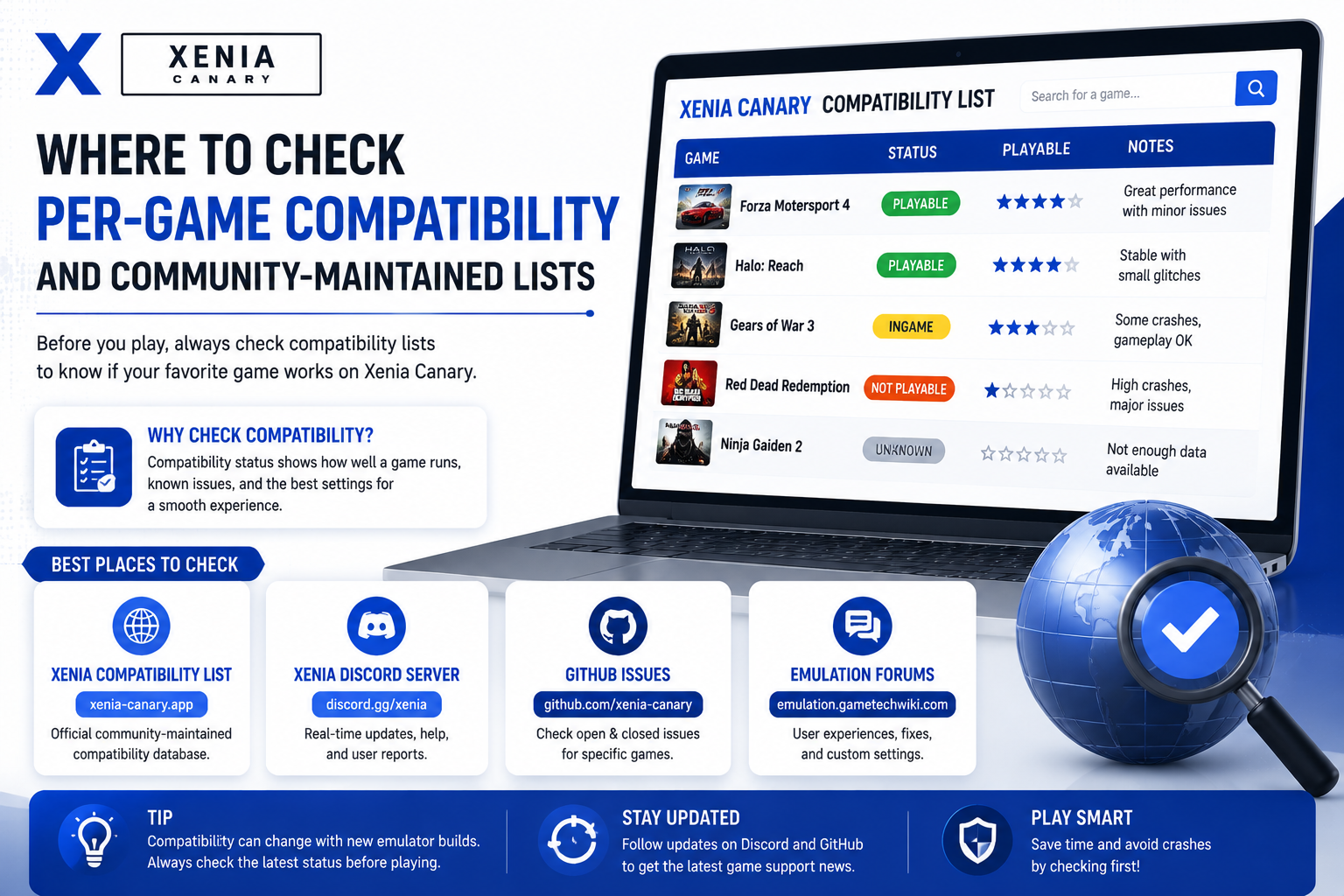
Community reports are especially useful because they often include practical information from users who have already tested multiplayer sessions, including required settings and encountered problems.
Before starting a Netplay session, review recent compatibility updates and confirm that all players are using suitable emulator versions and compatible game files.
Quickstart: Basic setup
Setting up Xenia Netplay requires preparing the emulator, system environment, controllers, and game files before connecting with other players. A correct setup helps reduce connection problems and improves the chances of a stable multiplayer experience.
The basic process includes installing a compatible Xenia build, preparing legally obtained game files, configuring controllers, and ensuring that all players have matching settings.
Prerequisites: hardware, OS, game dumps and controllers
A capable PC is required because Xbox 360 emulation already uses significant system resources, and multiplayer features add additional processing requirements. A modern processor, updated graphics drivers, and a stable operating system can help improve performance.
Xenia Netplay is primarily designed for supported 64-bit Windows environments. Keeping Windows updated and installing required system components helps prevent compatibility issues.
Players also need properly prepared game dumps from legally owned copies of Xbox 360 games. Using complete and verified game files is important because damaged or incomplete files can cause loading problems or multiplayer errors.
A compatible controller setup is also recommended. XInput controllers, especially Xbox-compatible gamepads, usually provide the best experience because they match the original Xbox 360 input system.
Before connecting to a multiplayer session, all players should verify that their Xenia versions, game files, and controller configurations are properly prepared.
Downloading the correct Xenia Canary Netplay build
To use Xenia Netplay, players need a compatible Xenia Canary build that includes the required multiplayer features. Since Netplay is an experimental area of development, standard or older builds may not contain the necessary components.
It is important to download Xenia builds from reliable official sources and to verify that all players are using the same versions. Different builds may handle networking features differently, leading to connection failures or synchronization issues.
After downloading the correct build, extract the emulator files to a dedicated folder and confirm that Xenia launches properly before configuring Netplay settings.
Configure netplay: example config file and minimal settings (image)
Configuring Xenia Netplay requires adjusting the emulator settings that control network communication and multiplayer behavior. A basic configuration should focus on stable connections rather than advanced changes.
Players should ensure that the required Netplay options are enabled and that the settings match between all participants. Using different configurations between players can lead to connection problems or desynchronization.
A minimal setup usually includes selecting the correct networking mode, confirming player settings, and verifying that the emulator can communicate with other Xenia instances.
Before starting a session, it is recommended to test the configuration with a simple setup and make changes only when a specific issue appears.
How to host a session and how to join a session
Hosting a Xenia Netplay session involves creating a multiplayer connection that allows other players to join. The host typically starts the game session, shares the required connection details, and waits for other players to connect.
Joining players must use compatible Xenia builds, match the game versions, and use the correct connection information provided by the host. Any differences in configuration may prevent successful synchronization.
Before gameplay begins, all participants should confirm that controllers are detected, the game loads correctly, and the connection remains stable.
If problems occur during connection, checking network settings, emulator versions, and game compatibility should be the first troubleshooting steps.
Advanced configuration
Advanced Xenia Netplay settings allow experienced users to improve connection reliability and adjust networking behavior. These options are mainly useful for users who understand network configuration and want to optimize multiplayer performance.
Changes should be made carefully because incorrect settings can cause connection failures, increased latency, or unstable gameplay.
Network setup: ports, NAT, and relay options (image)
Network configuration plays an important role in maintaining a stable Netplay connection. Router settings, firewall rules, and NAT behavior can affect whether players are able to connect successfully.
Some network environments may require specific ports to be available or additional configuration to allow incoming and outgoing communication. Players behind strict NAT settings may experience difficulties connecting directly.
Relay options can help when direct connections are not possible by providing an alternative communication path between players. The best option depends on network conditions and the selected Netplay mode.
Testing the connection before starting a full multiplayer session can help identify network-related problems early.
System Link, passthru, WSASendTo and other transport options
Xenia Netplay uses different transport methods to handle communication between connected systems. These options determine how multiplayer data is transferred between emulator instances.
System Link-style communication attempts to recreate the local multiplayer experience used by Xbox 360 consoles. Passthru methods allow certain network behaviors to be forwarded through the emulator environment.
WSASendTo and similar transport options are related to low-level network communication methods used by applications on Windows. These settings are generally intended for advanced testing and development purposes.
Most users should start with default transport settings unless they are troubleshooting a specific networking issue. Advanced options are best adjusted after understanding the effect they have on connection stability and synchronization.
Controller mapping, input devices and multiple controllers
Proper controller configuration is important for a smooth Xenia Netplay experience. All players should verify that their controllers are detected correctly before starting a multiplayer session.
XInput controllers usually provide the most reliable experience because they match the Xbox 360 control layout expected by Xenia. Other controllers may require additional mapping tools or manual configuration before they work correctly.
When using multiple controllers, each device should be assigned to the correct player slot. Incorrect assignments can cause input conflicts, missing controls, or players controlling the wrong character.
Testing controller input before joining a session helps identify problems early and prevents interruptions during multiplayer gameplay.
Sync checking, logging and reproducible session setup
Maintaining synchronization between players is one of the most important parts of Xenia Netplay. A stable session requires matching emulator versions, compatible game files, and similar configuration settings.
When problems occur, logs can help identify the cause of connection failures, crashes, or desynchronization. Recording the Xenia build, settings, and steps that reproduce an issue makes troubleshooting easier.
A reproducible session setup means that all players follow the same preparation process before connecting. This includes using matching builds, verifying game files, and keeping network settings consistent.
Performance optimization & best practices
Optimizing performance can improve the stability of Xenia Netplay sessions. Since multiplayer emulation requires both accurate game processing and network communication, system performance plays an important role.
A well-configured system reduces delays, prevents unnecessary slowdowns, and helps maintain better synchronization between players.
Recommended CPU/GPU and emulator settings for smoother netplay
Xenia Netplay benefits from a powerful CPU because emulation requires significant processing performance. A modern processor with strong single-core performance can help maintain smoother gameplay and reduce timing issues.
A capable GPU with updated drivers is also important for stable graphics rendering. Keeping drivers current can improve compatibility and reduce graphical problems.
Recommended practices include using updated Xenia builds, closing unnecessary background applications, and keeping graphics settings balanced. Increasing visual quality too much can reduce performance and affect multiplayer stability.
Players should focus on consistent performance rather than maximum graphics settings because stable gameplay is more important for online sessions.
Reducing latency and avoiding desyncs (network and emulator tips)
Network quality has a major effect on Netplay performance. A stable connection with low latency helps players maintain synchronization and reduces delays during gameplay.
Using a wired Ethernet connection is often preferred over wireless connections because it provides more consistent network performance. Players should also avoid heavy downloads or streaming activity during multiplayer sessions.
To reduce desyncs, all participants should use the same Xenia build, matching game versions, and similar configuration settings. Frequent changes between sessions can make troubleshooting more difficult.
Testing the connection before gameplay and keeping emulator settings consistent can improve session reliability.
When to use stable builds vs canary/testing builds
Stable Xenia builds are designed for users who prefer reliability and fewer experimental changes. They are generally better suited for players who want a predictable experience.
Canary builds receive newer updates and experimental features more frequently. They are often preferred by users testing new compatibility improvements or Netplay features.
For multiplayer testing, all players should use the same build type and version. Mixing stable and canary versions may result in compatibility issues or unexpected behavior.
Releases, builds & changelog (Web)
Keeping track of Xenia releases is important because emulator development changes frequently. New builds may include improvements that affect game compatibility, performance, and Netplay functionality.
Official release information helps users understand what has changed and whether an update may improve their multiplayer experience.
Where to find official builds, release notes and binary hashes
Official Xenia resources provide access to emulator builds, development updates, and release information. These sources are useful for downloading verified versions and checking recent improvements.
Release notes explain important changes included in new builds. Reviewing these details can help users determine whether an update addresses specific problems they are experiencing.
Binary hashes can be used to verify that downloaded emulator files match the official release. This helps ensure that users are working with correct and unmodified builds.
How to choose and verify a build for netplay
Choosing the correct Xenia build depends on the features required and the stability level preferred. Players testing Netplay should select builds that include the required multiplayer functionality.
Before starting a session, all players should confirm that they are using the same build version. Matching versions reduce the chance of connection errors and synchronization problems.
Verifying the downloaded files and keeping backups of working builds allows users to test updates without losing a stable setup.
Troubleshooting common issues
Xenia Netplay issues can occur because of network conditions, emulator settings, compatibility limitations, or system differences. Troubleshooting should begin with basic checks before changing advanced options.
Testing one change at a time makes it easier to identify the source of a problem.
Connection errors, timeouts and NAT problems
Connection problems are often caused by network restrictions, firewall settings, or NAT limitations. A strict NAT environment can prevent players from establishing direct connections.
Checking router settings, firewall permissions, and network stability can help resolve many connection issues.
Timeouts may also occur when players use different emulator versions, incorrect session settings, or unsupported network configurations.
Diagnosing and fixing desyncs
Desynchronization happens when connected players no longer share the same game state. This can result in different gameplay outcomes, freezes, or connection failures.
Common causes include different Xenia builds, mismatched game files, unstable connections, and inconsistent settings between players.
To diagnose desyncs, compare emulator versions, review logs, and recreate the session using the same configuration across all systems.
Game-specific quirks and known issues
Some Xbox 360 games may have unique Netplay problems due to their original networking systems or emulator compatibility limitations.
Issues can include missing multiplayer features, unstable connections, incorrect behavior during specific gameplay sections, or features that depend on unavailable Xbox Live services.
Checking game-specific reports and community testing results can help users understand known limitations and possible workarounds.
As Xenia Netplay continues to develop, compatibility may improve through future emulator updates and additional testing.
Frequently Asked Questions About Xenia Canary Netplay
What is Xenia Canary Netplay?
Xenia Canary Netplay is an experimental multiplayer feature for the Xenia Xbox 360 emulator. It allows players to test online-style multiplayer experiences by connecting multiple Xenia instances. The feature is still under development, so compatibility, stability, and supported games may vary depending on the emulator build and game being tested.
Is Xenia Netplay available for all Xbox 360 games?
No, Xenia Netplay does not support every Xbox 360 game. Multiplayer compatibility depends on how the original game handles networking, current Xenia improvements, and successful synchronization between players. Some games may work well, while others may have connection issues, crashes, or missing multiplayer features.
Which Xenia build should I use for Netplay?
Xenia Canary builds are generally recommended for Netplay testing because they include newer experimental features and frequent development updates. However, all players should use the same Xenia version to avoid compatibility problems, connection failures, or synchronization issues during multiplayer sessions.
Do I need a powerful PC for Xenia Netplay?
Yes, a capable PC is recommended because Xbox 360 emulation already requires significant processing power. A modern CPU, suitable GPU, updated drivers, and stable system performance can help reduce slowdowns and improve multiplayer stability.
Can I use any controller with Xenia Netplay?
Xenia Netplay works best with XInput-compatible controllers, especially Xbox-style gamepads. Other controllers may work with additional configuration tools, but players should test input mapping before starting a multiplayer session to avoid control problems.
Why do Xenia Netplay sessions desync?
Desyncs can happen when connected systems process the game differently. Common causes include mismatched Xenia builds, different game files, unstable network connections, or inconsistent emulator settings. Using identical configurations and checking logs can help identify the cause.
Conclusion
Xenia Canary Netplay represents an important step toward bringing Xbox 360 multiplayer experiences to modern PC emulation. It allows users to explore online-style gameplay through Xenia while helping developers test and improve multiplayer functionality.
Because Netplay is still experimental, users should expect limitations such as compatibility issues, connection problems, and occasional desynchronization. Proper preparation, matching emulator builds, stable network connections, and correct controller configuration can greatly improve the experience.
For players interested in testing new emulator features, Xenia Canary Netplay provides an opportunity to explore multiplayer possibilities that were previously limited to original Xbox 360 hardware. As development continues, support and reliability are expected to improve through community testing and future updates.