What this guide covers
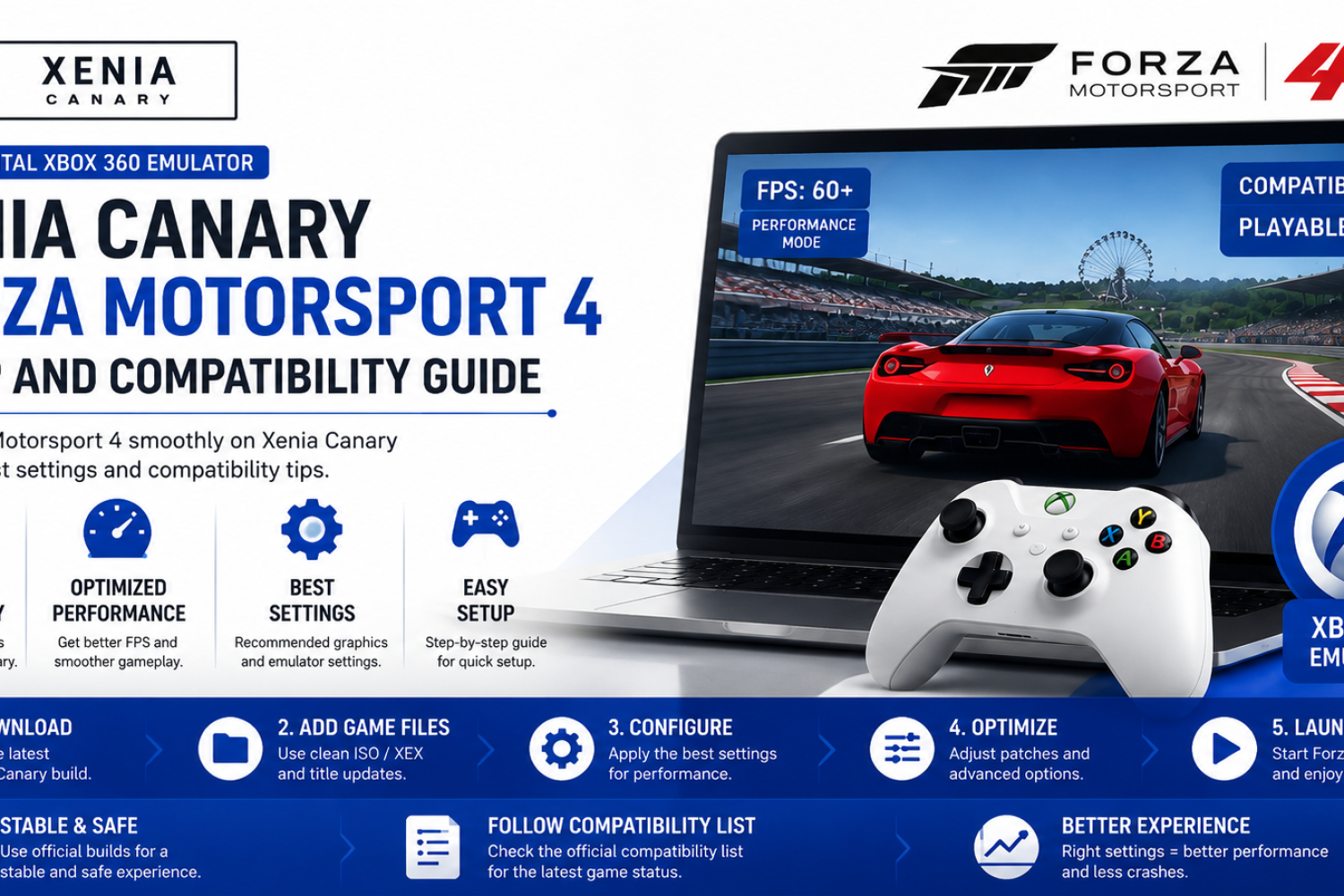
Forza Motorsport 4 is one of the most popular racing titles from the Xbox 360 era, and many players use Xenia to experience it on modern PCs. However, running the game through an emulator requires understanding compatibility status, available patches, settings, and possible performance limitations.
This guide explains the important steps needed to run Forza Motorsport 4 on Xenia. It covers compatibility details, recommended emulator settings, required files, graphics adjustments, and common fixes for issues that may appear during gameplay.
The article also focuses on improving the overall experience by using available patches and configuration options. These adjustments can help reduce graphical problems, improve stability, and make the game run closer to its original console performance.
Players should keep in mind that Xenia development is ongoing, and emulator performance can vary depending on the Xenia build, PC hardware, and game updates. Testing the latest recommended build and keeping settings properly configured can provide better results.
By following the steps in this guide, users can better understand what to expect from Forza Motorsport 4 on Xenia and how to prepare their system for a smoother racing experience.
Who this guide is for and scope
This guide is designed for players who want to run Forza Motorsport 4 through the Xenia Xbox 360 emulator on a Windows PC. It is intended for users who are new to Xenia, as well as for experienced emulator users seeking information on compatibility, settings, and performance improvements.
The guide focuses on the practical steps required to prepare Xenia, configure the game, apply recommended adjustments, and troubleshoot common issues. It also explains the limitations players may encounter when running the title on an emulator.
This content does not guarantee identical performance on every system because results depend on hardware specifications, Xenia versions, graphics settings, and emulator development progress.
The main goal is to help users understand the setup process and make informed adjustments for a smoother Forza Motorsport 4 experience.
Legal note and required files
To run Forza Motorsport 4 on Xenia, users need legally obtained game files from their own Xbox 360 system. The emulator itself does not include copyrighted game data, and users are responsible for obtaining and using files they have the legal right to access.
Xenia requires properly prepared game files, system files, and any necessary updates or patches that are legally available for the game. Using verified files helps prevent loading errors, crashes, and compatibility problems.
Before starting the setup, users should make sure they have:
- A compatible Windows PC capable of running Xenia.
- A supported Xenia build.
- A legally obtained copy of Forza Motorsport 4.
- Required game updates or patches from legitimate sources.
- Updated graphics drivers and system components.
Keeping backups of original files and configuration settings is also recommended. This allows users to restore previous settings if testing different emulator options causes problems.
Legitimate game dumps and why they matter
A legitimate game dump is a digital copy of a game created from a legally owned physical or digital version. For emulation, using properly created game files is important because the emulator depends on accurate data to reproduce the original Xbox 360 game experience.
Incorrect, incomplete, or modified game files can cause various problems in Xenia, including crashes, missing assets, loading failures, and unexpected graphical issues. Using a clean and verified dump improves the chances of stable performance.
Legitimate game files also help users avoid compatibility problems caused by unofficial modifications. When testing games on Xenia, developers and the community can provide more accurate feedback when users are working with original, unchanged files.
Keeping a backup of your legally obtained game data also makes it easier to restore files, test different emulator settings, or move your setup to another system.
Verifying game files before emulation
Before launching Forza Motorsport 4 in Xenia, it is recommended to check that the game files are complete and properly recognized by your system. Missing or damaged files can prevent the emulator from loading the game correctly.
Users should confirm that the game data matches the expected structure and that all required files are present. A clean file setup reduces the chances of encountering errors during startup or gameplay.
Checking file integrity is especially useful when troubleshooting issues such as black screens, crashes, missing textures, or performance problems. If problems appear, verifying the files should be one of the first troubleshooting steps.
Keeping game files organized with proper backups and avoiding unnecessary changes helps maintain a more reliable Xenia setup.
System requirements and recommended hardware
Running Forza Motorsport 4 on Xenia requires a capable PC because Xbox 360 emulation depends heavily on CPU performance, graphics capability, and system stability. Unlike traditional PC games, emulators need additional resources to translate console instructions into a format that modern hardware can process.
A stronger processor is especially important because Xenia relies heavily on CPU performance for accurate game emulation. A modern multi-core CPU, updated graphics drivers, and enough system memory can help improve stability and reduce performance issues.
The graphics card also plays an important role in rendering the game correctly. A DirectX or Vulkan-compatible GPU with updated drivers can provide better compatibility and smoother visuals.
Storage speed can also affect loading times and overall responsiveness. Installing Xenia and game files on an SSD can help reduce delays compared to using an older mechanical hard drive.
Minimum vs recommended specs
The minimum hardware requirements represent the basic level needed to start testing Forza Motorsport 4 on Xenia. However, performance may vary, and users may experience lower frame rates, longer loading times, or graphical issues on weaker systems.
Recommended hardware provides a more stable experience with better performance and fewer compatibility problems. A modern CPU with strong single-core performance, a capable dedicated GPU, and sufficient RAM can significantly improve emulator results.
| Component | Minimum Level | Recommended Level |
| Processor | Modern quad-core CPU with good performance | Recent high-performance CPU with strong single-core speed |
| Graphics Card | DirectX/Vulkan-compatible GPU | Modern dedicated GPU with updated drivers |
| Memory | 8 GB RAM | 16 GB RAM or more |
| Storage | HDD or SSD with enough space | SSD for faster loading and smoother operation |
| Operating System | Updated 64-bit Windows version | Latest supported 64-bit Windows version |
Meeting recommended specifications does not guarantee perfect performance because Xenia compatibility also depends on emulator updates and game-specific improvements. However, better hardware provides more room for higher settings and smoother gameplay.
Recommended Xenia build and OS
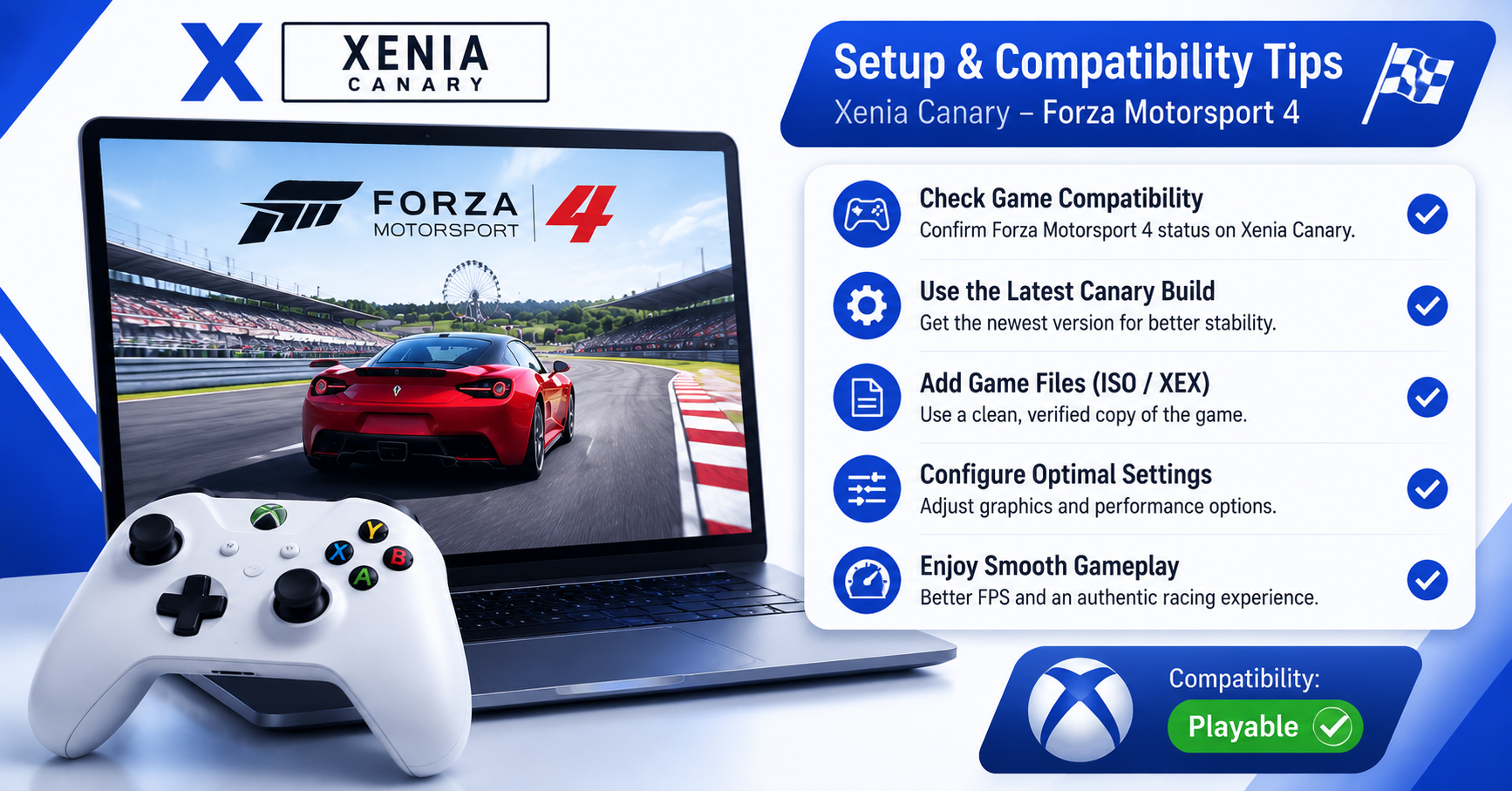
Forza Motorsport 4 should be tested with a recent and actively maintained Xenia build to get the latest compatibility improvements and bug fixes. Xenia Canary is commonly used by players because it receives frequent updates focused on performance improvements and experimental features.
Using an outdated emulator version can lead to problems that may already be fixed in newer releases. Before troubleshooting game issues, it is recommended to update Xenia and test the latest available build.
A 64-bit version of Windows is required for running Xenia. Keeping Windows updated, along with the latest graphics drivers, helps improve emulator stability and prevents compatibility problems caused by outdated system components.
For the best results, players should use a modern Windows setup with updated GPU drivers and avoid running unnecessary background applications that may affect emulator performance.
Current compatibility status (Web)
Forza Motorsport 4 compatibility on Xenia continues to improve as emulator development progresses. The game can start and run on supported systems, but the overall experience may vary depending on the Xenia build, PC hardware, and the current state of the emulator.
Some areas of the game may work correctly while others can still have issues. Players may encounter problems such as graphical glitches, performance drops, audio problems, or occasional crashes depending on the configuration being used.
Compatibility information can change over time as developers release new Xenia updates. Checking current compatibility reports, community testing results, and recent emulator changes can help users understand the latest game behavior.
Before making major configuration changes, it is recommended to test the game with the latest Xenia version and default settings. This helps determine whether an issue is caused by emulator limitations or incorrect local configuration.
Playability overview: menus, gameplay, and blocking bugs
Forza Motorsport 4 can be tested through Xenia, but the overall experience depends on the current emulator version and system configuration. The game may reach menus and allow gameplay, but certain issues can still affect stability or visual quality.
Menu navigation is usually an important first test because it shows whether the game loads correctly and responds to controller input. Problems at this stage may indicate compatibility limitations or incorrect emulator settings.
During gameplay, users may experience differences from the original Xbox 360 version. Possible issues can include unstable performance, graphical errors, missing effects, audio problems, or occasional crashes in specific sections.
Some bugs may block progress or prevent certain features from working correctly. These problems are often related to emulator accuracy rather than the game files themselves, and they may improve as Xenia receives new updates.
Testing different emulator builds and reporting issues with accurate details can help developers identify and improve game-specific compatibility problems.
How to check live compatibility and status (Web)
Xenia compatibility information changes frequently as new builds are released and developers improve emulator features. Checking online reports is the best way to find up-to-date information on Forza Motorsport 4 performance.
Players can review official compatibility resources, community discussions, and recent test results to see whether specific issues have been resolved or are still under investigation.
When checking compatibility status, look for details such as:
- Whether the game reaches menus or full gameplay.
- Known graphical or audio problems.
- Required patches or recommended settings.
- Performance results from recent Xenia versions.
Compatibility reports are most useful when they include emulator version details, hardware information, and clear descriptions of problems. This helps users compare their own setup and understand whether an issue is common or system-specific.
Common issues and symptoms
When running Forza Motorsport 4 on Xenia, users may experience different issues depending on the emulator build, hardware configuration, and current compatibility level. Some problems are related to emulator development, while others can be caused by incorrect settings or system limitations.
Common symptoms include game crashes, graphical glitches, unstable performance, missing effects, audio problems, or the game failing to load properly. Identifying the exact symptom helps determine the right troubleshooting approach.
Before changing multiple settings, it is useful to note when the problem occurs. Whether the issue appears during startup, menus, races, or specific events can provide important information for finding a possible solution.
Typical crash points and error messages
Crashes in Forza Motorsport 4 may occur at different stages of emulation. Some users may experience problems while launching the game, loading a save file, entering menus, or starting a race.
Common crash situations include:
- The game closing shortly after launch.
- Freezing during loading screens.
- Crashes when entering gameplay sections.
- Sudden shutdowns during races or menu navigation.
Error messages may vary depending on the Xenia build and system setup. Some errors can be caused by missing dependencies, outdated drivers, unsupported emulator features, or incorrect configuration settings.
If Xenia displays an error message or creates a log file, reviewing the details can help identify the cause. Emulator logs are especially useful when reporting issues because they provide information about what happened before the crash.
Updating Xenia, checking system requirements, and testing with default settings are recommended first steps before applying advanced fixes.
Graphics, audio, and input problems
Graphics issues are among the most common problems users may notice when running Forza Motorsport 4 on Xenia. These problems can appear as missing textures, visual glitches, flickering objects, incorrect lighting, or other rendering differences compared to the original Xbox 360 version.
Performance-related graphics problems may also occur, including unstable frame rates, slowdowns, or stuttering during races. These issues can depend on the Xenia build, graphics API settings, GPU drivers, and available system resources.
Audio problems can include missing sounds, distorted effects, delayed audio, or incorrect playback during gameplay. These issues are often related to emulator compatibility and may improve with future Xenia updates.
Input problems usually involve controllers not being detected correctly, incorrect button mapping, or delayed responses. Using an XInput-compatible controller and checking Windows controller settings can help resolve many input-related issues.
If problems continue, testing the latest Xenia build, updating graphics drivers, and checking controller configuration should be the first troubleshooting steps.
Save, profile, and progress issues
Save-related problems can occur when running Xbox 360 games through emulation. Users may experience issues with loading saved progress, creating new save files, or accessing profile data if the emulator cannot correctly handle the required system files.
Forza Motorsport 4 may require properly configured Xbox 360 storage or profile data to save progress correctly. Incorrect file placement or missing system data can prevent saves from working as expected.
If a save file fails to load, check that the game files and emulator settings are correctly configured. Testing with a new save can help determine whether the issue is related to the game setup or an existing save file.
Keeping backups of save data is recommended before changing emulator settings or updating Xenia. This helps prevent accidental loss of progress while testing different configurations.
As Xenia continues to improve, some save and profile-related limitations may be resolved through future emulator updates.
Known configuration workarounds and when to use them
Some Forza Motorsport 4 issues in Xenia may require specific configuration adjustments to improve stability or reduce compatibility problems. These workarounds are usually used when the default emulator settings do not provide reliable results.
Common adjustments may include changing graphics settings, testing different Xenia builds, updating drivers, or modifying controller and performance options. However, users should apply changes one at a time to understand which setting affects the game behavior.
Configuration workarounds are most useful when dealing with specific problems such as crashes, graphical glitches, slow performance, or loading issues. A setting that improves performance on one system may not provide the same results on another because hardware and emulator versions can vary.
Before applying advanced changes, it is recommended to keep a backup of working settings. This makes it easier to return to a stable configuration if a new adjustment causes additional problems.
Applying patches and launching the game (image)
Patches can help improve compatibility, fix specific problems, or adjust game behavior when running Forza Motorsport 4 through Xenia. These patches are usually created for known emulator limitations and should only be used when they are compatible with the current Xenia build.
Before applying any patch, verify that the game version matches the patch requirements. Using incorrect patches can cause crashes, unexpected behavior, or prevent the game from launching properly.
The general process involves enabling the required patch files or settings, starting Xenia, and testing the game to confirm whether the changes improve performance or fix the targeted issue.
After applying patches, it is useful to test different sections of the game, including menus, races, and loading screens. This helps confirm whether the patch provides a stable improvement or introduces new problems.
Always keep original files and configurations backed up before experimenting with patches. This allows users to quickly restore the previous setup if needed.
Step-by-step: prepare Xenia and the game
Before running Forza Motorsport 4 on Xenia, it is important to prepare both the emulator and the game environment correctly. A proper setup helps reduce common issues such as crashes, loading problems, and incorrect performance.
The preparation process includes choosing a suitable Xenia build, checking system requirements, organizing game files, and confirming that required dependencies are installed. Following these steps creates a cleaner setup and makes troubleshooting easier if problems appear later.
Users should also keep backups of important configuration files and save data before testing different settings. This allows changes to be reversed without losing progress or previous working configurations.
Downloading and verifying the correct Xenia build
Choosing the correct Xenia build is an important first step because emulator updates often include compatibility improvements and bug fixes. Using an outdated version may cause issues that have already been resolved in newer releases.
Xenia Canary is commonly used for testing because it receives frequent development updates and improvements. Before downloading a build, check that it comes from a reliable source and matches your system requirements.
After downloading Xenia, extract the emulator files to a dedicated folder. Avoid placing the emulator inside temporary locations where files may be restricted or accidentally removed.
Before launching the game, verify that the emulator starts correctly and that required system components are installed. Testing Xenia without the game first can help identify installation or dependency problems early.
Keeping the emulator updated while maintaining backups of working versions allows users to test improvements without losing a stable setup.
Preparing game files and folders
Before launching Forza Motorsport 4 with Xenia, it is important to organize the game files correctly. A clean folder structure helps the emulator locate required data and makes troubleshooting easier if loading problems occur.
Keep the game files stored in a dedicated location with simple folder names. Avoid moving or renaming important files after configuring Xenia because changes to file paths can cause the emulator to lose access to required data.
Make sure the game files are complete and properly prepared before testing. Incomplete or damaged files can lead to crashes, missing content, loading failures, or unexpected behavior during gameplay.
It is also recommended to keep backups of important files, including emulator settings and save data. This allows users to restore a working setup when testing different configurations or updates.
Launch sequence and first-run checklist
The first launch should be used to confirm that Xenia, the game files, and the controller setup are working correctly. Start by opening Xenia and checking that the emulator loads without errors.
Before starting gameplay, verify that the controller is detected and responding correctly. Testing input at this stage helps prevent confusion between emulator issues and controller configuration problems.
During the first run, check important areas such as game startup, menu navigation, loading screens, and basic gameplay performance. These tests help identify whether the setup is working as expected.
If problems appear, avoid changing multiple settings at the same time. Make one adjustment, test the game again, and note whether the change improves or affects performance.
A successful first-run checklist should confirm that the emulator starts correctly, the game loads, controls respond properly, and no major errors prevent gameplay.
Performance tuning and recommended settings
Optimizing Xenia settings can help improve the overall experience when running Forza Motorsport 4. Since Xbox 360 emulation requires significant system resources, adjusting graphics and performance options can help create a more stable balance between visual quality and speed.
The best settings depend on your PC hardware, Xenia build, and current game compatibility. Higher-end systems may handle increased resolution and enhanced graphics options, while lower-end systems may need more conservative settings for smoother performance.
Before making advanced changes, it is recommended to test the game using default Xenia settings. This provides a baseline and helps identify whether a performance problem is caused by configuration changes or emulator limitations.
Keeping graphics drivers updated and using a suitable power mode in Windows can also improve performance. Closing unnecessary background applications may help free system resources during gameplay.
Graphics and resolution settings for stability and speed
Graphics settings have a major impact on how Forza Motorsport 4 performs in Xenia. Increasing resolution and visual enhancements can improve image quality, but they may also increase hardware requirements and cause performance drops.
For better stability, start with moderate resolution settings and test gameplay before increasing visual quality. If the game runs smoothly, gradually adjust settings to find the best balance between performance and graphics.
Lowering demanding options can help reduce slowdowns, stuttering, or crashes on weaker systems. Players experiencing graphical problems should also test different graphics backends or update GPU drivers if available.
Resolution scaling should be adjusted according to your hardware capability. A powerful GPU can handle higher resolutions, while less powerful systems may benefit from keeping settings closer to the original Xbox 360 output.
The goal is to achieve consistent performance rather than using the highest possible settings. A stable frame rate and correct rendering are usually more important than maximum visual enhancements.
CPU/GPU optimization and thread options
Xenia performance depends heavily on both CPU and GPU capability. The processor handles many emulation tasks, while the graphics card manages rendering and visual output. Balancing both components can improve stability and reduce performance issues during gameplay.
A modern CPU with strong single-core performance is especially helpful because emulation workloads often depend on efficient instruction processing. Keeping unnecessary background applications closed can free additional CPU resources for Xenia.
GPU optimization is also important for maintaining smooth graphics performance. Updating graphics drivers and using a suitable graphics mode can help improve compatibility and reduce rendering problems.
Thread-related options can affect how Xenia uses available processor resources. On supported systems, allowing the emulator to efficiently use multiple CPU threads may improve performance, but the best results depend on the specific game and hardware configuration.
Users should avoid changing multiple advanced options at once. Testing one adjustment at a time makes it easier to identify settings that improve performance or create new issues.
Example recommended Xenia settings (image)
Recommended Xenia settings for Forza Motorsport 4 should focus on stability rather than maximum visual quality. Because emulator performance varies between systems, these settings should be used as a starting point and adjusted according to hardware capability.
A balanced configuration may include:
- Using the latest recommended Xenia build.
- Keeping default graphics options unless a specific issue appears.
- Using updated GPU drivers.
- Selecting settings that provide stable performance instead of maximum resolution.
- Testing controller and gameplay behavior after each major change.
Higher-end systems can experiment with improved resolution and enhanced graphics options, while mid-range systems may benefit from keeping settings closer to the original Xbox 360 experience.
Always test changes after applying new settings. A configuration that works well for one PC may not provide the same results on another system due to differences in CPU, GPU, drivers, and emulator updates.
Troubleshooting and reporting bugs to developers
When running Forza Motorsport 4 on Xenia, some issues may occur because of emulator limitations, game compatibility problems, or system configuration differences. Proper troubleshooting helps identify whether a problem comes from the emulator, hardware, settings, or game files.
Before reporting an issue, test basic solutions such as updating Xenia, checking system requirements, verifying game files, and returning settings to their default values. This helps remove common causes and provides more accurate information when requesting support.
If a problem continues, reporting it to Xenia developers or the community with detailed information can help improve future compatibility. Clear reports allow developers to reproduce the issue and investigate possible fixes.
How to collect logs, reproductions, and required files
Collecting accurate information is important when reporting Xenia problems. A useful bug report should explain what happened, when the issue occurs, and what steps can be followed to reproduce it.
Before creating a report, gather details such as:
- The Xenia build or version being used.
- Your PC hardware specifications.
- Operating system version.
- Graphics driver information.
- Description of the issue and when it happens.
Xenia logs can provide important technical details about crashes, errors, and emulator behavior. These logs should be included when reporting problems because they help developers understand what happened internally.
A good reproduction guide should include clear steps, such as launching the game, reaching a specific menu or race, and describing the exact point where the problem appears.
Avoid sharing unnecessary files or modified game data. Instead, provide relevant logs, screenshots, error messages, and configuration details that help developers investigate the issue safely and effectively.
Accurate bug reports improve the chances of finding solutions and contribute to better Xenia compatibility for future updates.
Resources and live links (Web)
Using reliable resources is important when working with Xenia because emulator development changes frequently. Official pages, compatibility information, and issue trackers provide the most accurate updates about new features, bug fixes, and known problems.
Players should use trusted sources when checking emulator versions, compatibility details, and troubleshooting information. Community discussions can be helpful, but official resources usually provide the most reliable information about development changes.
Keeping track of updates can help users understand whether a problem with Forza Motorsport 4 is caused by a current emulator limitation or has already been improved in a newer release.
Official Xenia builds, compatibility pages, and issue trackers (Web)
The official Xenia resources provide access to emulator builds, development information, and reported issues. These pages are useful for downloading updated versions, checking compatibility progress, and reviewing known problems.
Xenia builds should be obtained from official sources to ensure that users are testing with authentic and updated emulator versions. New releases may include performance improvements, bug fixes, and changes that affect game compatibility.
Compatibility pages and community testing reports help users understand the current state of specific games. They can show whether a title reaches menus, supports gameplay, or still has known issues.
Issue trackers are useful when investigating technical problems. Users can search existing reports before creating a new issue and provide detailed information if a problem has not already been reported.
When checking resources, always review the latest available information because emulator compatibility can change as developers continue improving Xenia.
FAQS
Is Forza Motorsport 4 playable on Xenia?
Forza Motorsport 4 can be tested on Xenia, but the overall experience depends on the current emulator version, system hardware, and compatibility improvements. Some parts of the game may work well, while users may still encounter graphical issues, performance limitations, or occasional crashes.
Which Xenia build is recommended for Forza Motorsport 4?
Xenia Canary is commonly used because it receives frequent development updates and compatibility improvements. Using a recent build is recommended because older versions may contain issues that have already been fixed in newer releases.
Do I need patches to run Forza Motorsport 4 on Xenia?
Patches may help with certain compatibility issues or improve specific aspects of the game, but they are not always required. Their usefulness depends on the current Xenia build and the problems a player is experiencing.
Why does Forza Motorsport 4 crash on Xenia?
Crashes can happen because of emulator limitations, outdated builds, incorrect settings, driver problems, or system limitations. Updating Xenia, checking hardware requirements, and testing default settings can help identify the cause.
What PC specifications are recommended for Forza Motorsport 4 on Xenia?
A modern CPU, updated graphics card, and sufficient RAM are recommended for better emulation performance. Since Xenia relies heavily on CPU performance, a processor with strong single-core capability can provide better results.
How can I report Forza Motorsport 4 issues to Xenia developers?
Users can report problems by providing detailed information such as Xenia version, system specifications, logs, and clear reproduction steps. Accurate reports help developers understand and fix compatibility issues more effectively.
Conclusion
Running Forza Motorsport 4 on Xenia requires proper preparation, compatible hardware, and an understanding of emulator limitations. While Xenia continues to improve, performance and stability can vary depending on the emulator build and individual PC configuration.
Using a recent Xenia version, correctly prepared game files, updated drivers, and optimized settings can help create a better experience. Troubleshooting should be done carefully by testing changes one at a time and keeping backups of working configurations.
As Xenia development continues, compatibility for Xbox 360 games like Forza Motorsport 4 may improve further. Staying updated with official resources and community testing reports is the best way to follow future improvements.